Uploading vaccination records
From the homepage, select Imports. This takes you to the Imports page.
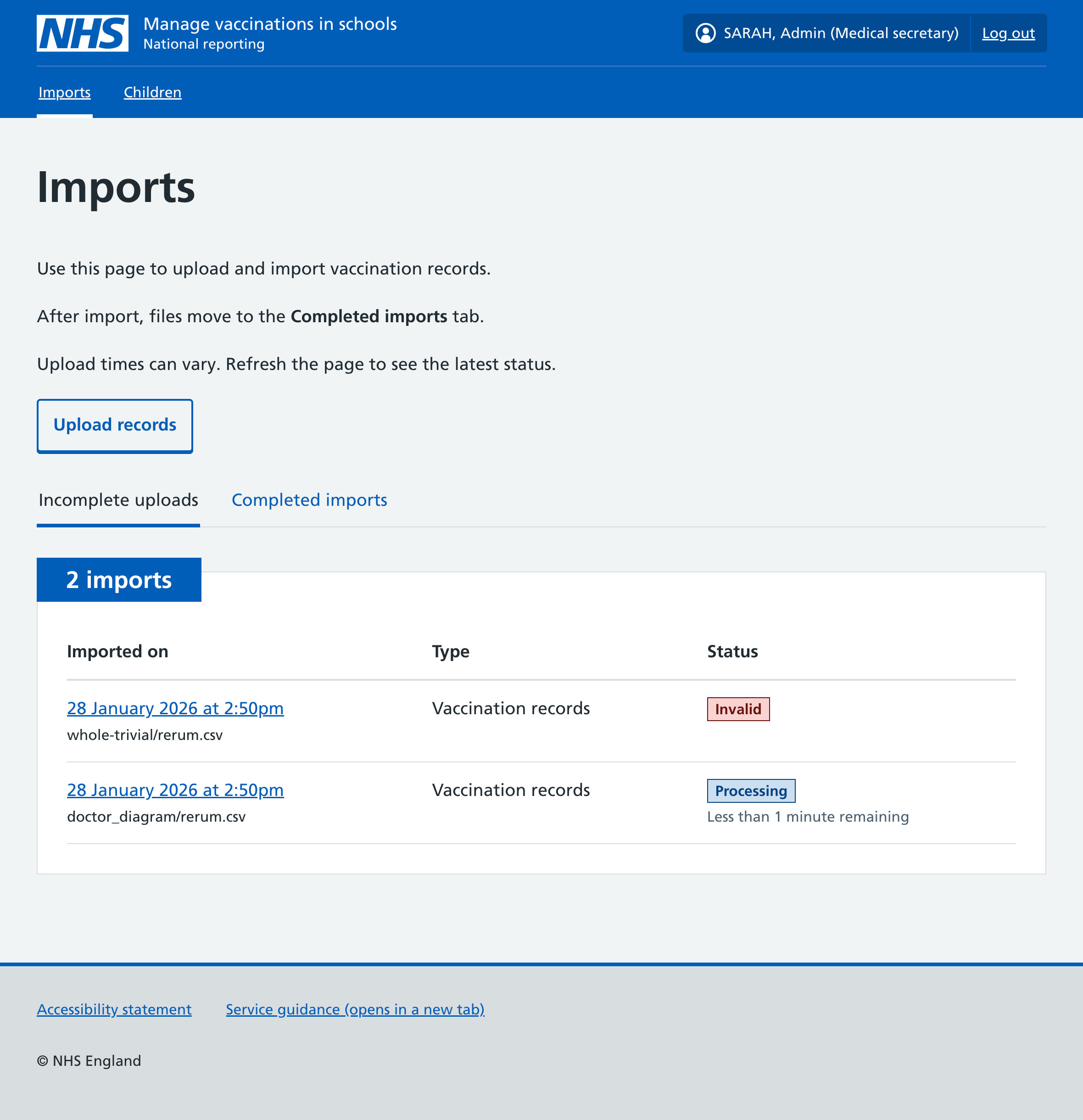
Preparing files to upload
Files must be in CSV format. If you have an Excel file with multiple tabs, you’ll need to consolidate this into a single tab before saving it as a CSV file, or create a separate CSV file for each tab.
You can include records from different vaccination programmes in the same file.
Any file that’s compatible with NIVS specifications will also be compatible with national reporting specifications.
The date in the DATE_OF_VACCINATION column must be the date the vaccination took place (not the date you are uploading the record, if you’re uploading it later).
For more detailed information about the columns that must be included in the CSV file, select How to format your CSV file for vaccination records on the Upload vaccination records page (see Uploading a file, below).
Large cohort files can fail to upload, due to their size. If your CSV file has over 10,000 rows, we recommend you split it into smaller files - for example 2 files with 5,000 rows.
Uploading a file
- On the Imports page, select Upload records.
- Select Choose file, then select the CSV file you want to import.
- Select Continue.
- You can see the file’s status on the Incompleted imports list.
You may need to refresh the page to see the latest status.
Unsuccessful upload
If there are any validation issues, Mavis will not import the file. It will stay on the Incomplete imports list with its status marked as invalid.
Viewing and resolving upload issues
To view the validation issues, click on your file upload’s date and time stamp.
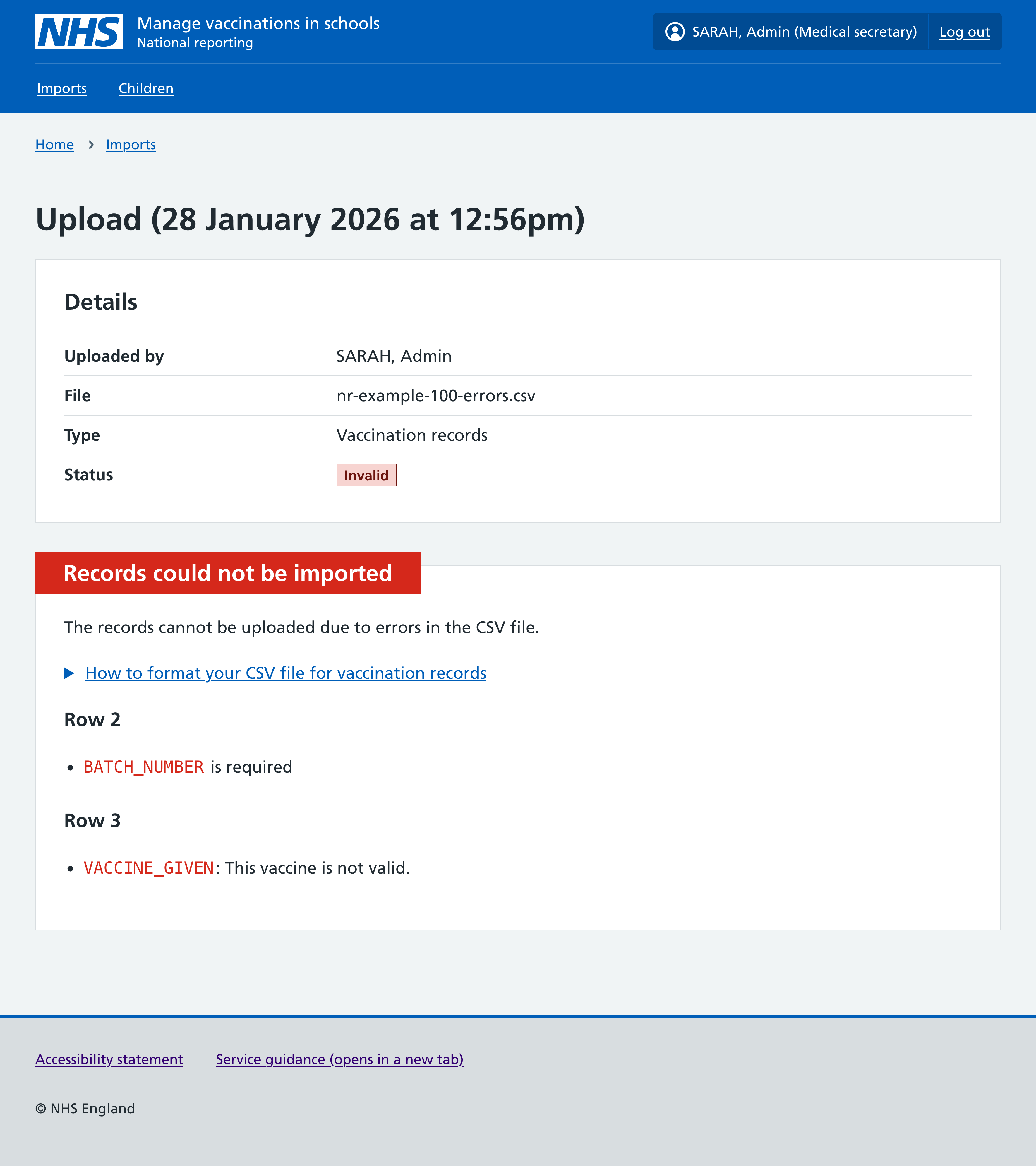
You should then:
- return to your CSV file and correct the issues listed
- save the changes and upload the file again
Successful upload
If the file was imported successfully it will no longer be visible on the Incomplete imports list. It will now be on the Completed imports list.
You can find it by selecting the Completed imports tab.
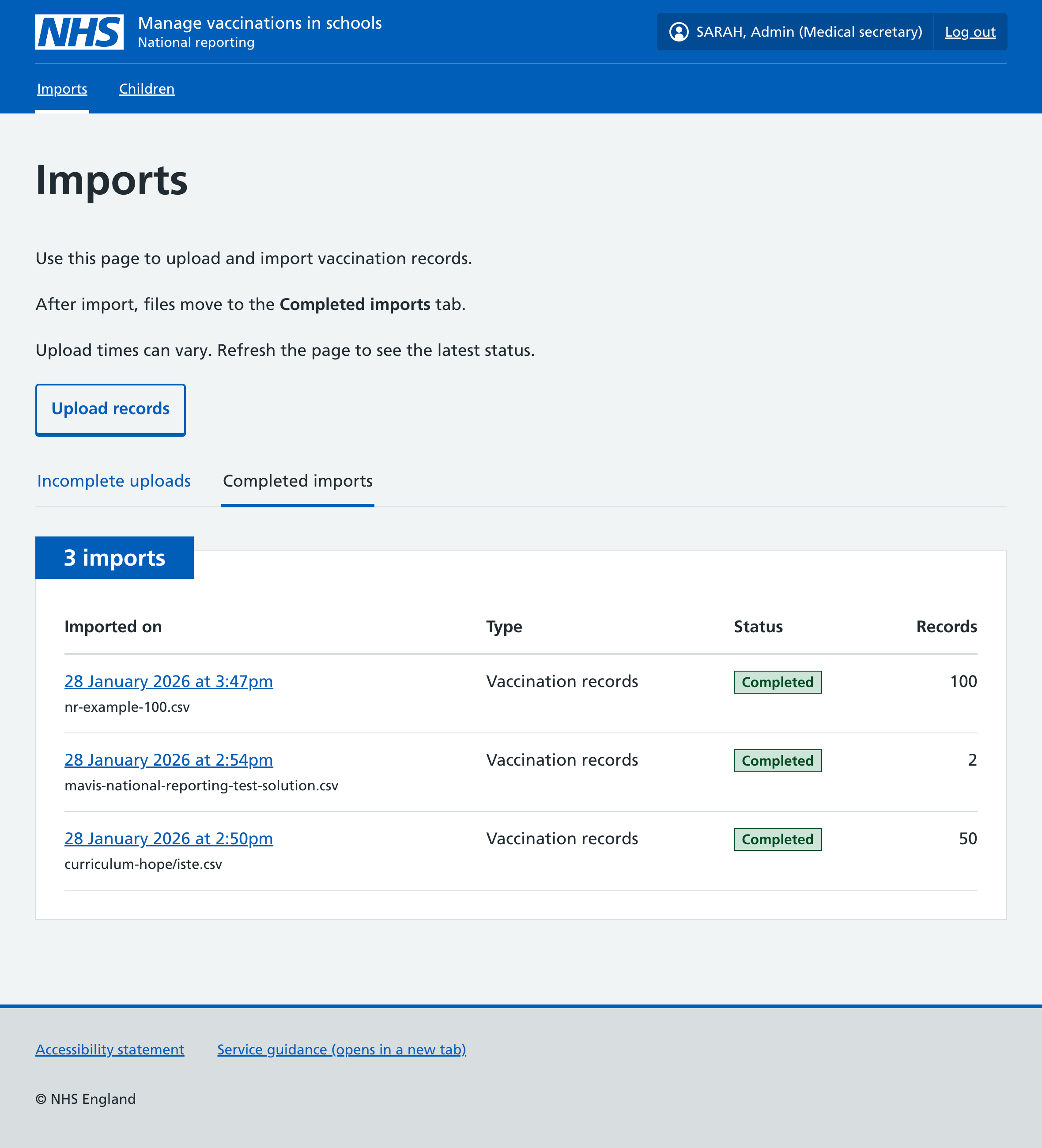
Mavis will automatically send imported vaccination records to NHS England.