Managing schools in Mavis
You need to provide a list of schools in your area:
- when you start using Mavis
- when offering a new vaccination programme through Mavis for the first time (for example, if you only provided secondary schools previously, and now you want to offer vaccinations in primary schools)
You can do this through the link in your Getting ready to use Mavis email or by contacting england.mavis@nhs.net.
It’s important to include the correct unique reference number (URN) for each school on your list. Mavis gets the information it shows about schools (including which year groups attend the school) using the URNs you provide.
Adding schools manually
If your team is responsible for a school, but it was not included in your list, you can add it to Mavis manually.
- Go to the Team tab.
- Select Schools.
- Select Add a new school.
- Enter the school URN and select Continue.
- If this is the school you want to add, select Yes, add this school. If not, select No and enter the correct URN.
- After you select Yes, add this school you’ll see the pre-selected year groups for that school.
- Deselect any year groups and/or select additional ones as necessary.
- Review the school details and select Add school.
You cannot add a school if it is already assigned to another team in Mavis.
If you need to remove a school, contact the Mavis team.
You can update children’s schools on their record. See Editing individual child records.
Adding school sites
If a school has more than 1 site you can add them in Mavis.
- Go to Team by selecting it in the top navigation.
- Select Schools under the Your team heading.
- Select Add a new school site.
- Search for the existing school by typing its name in the search field.
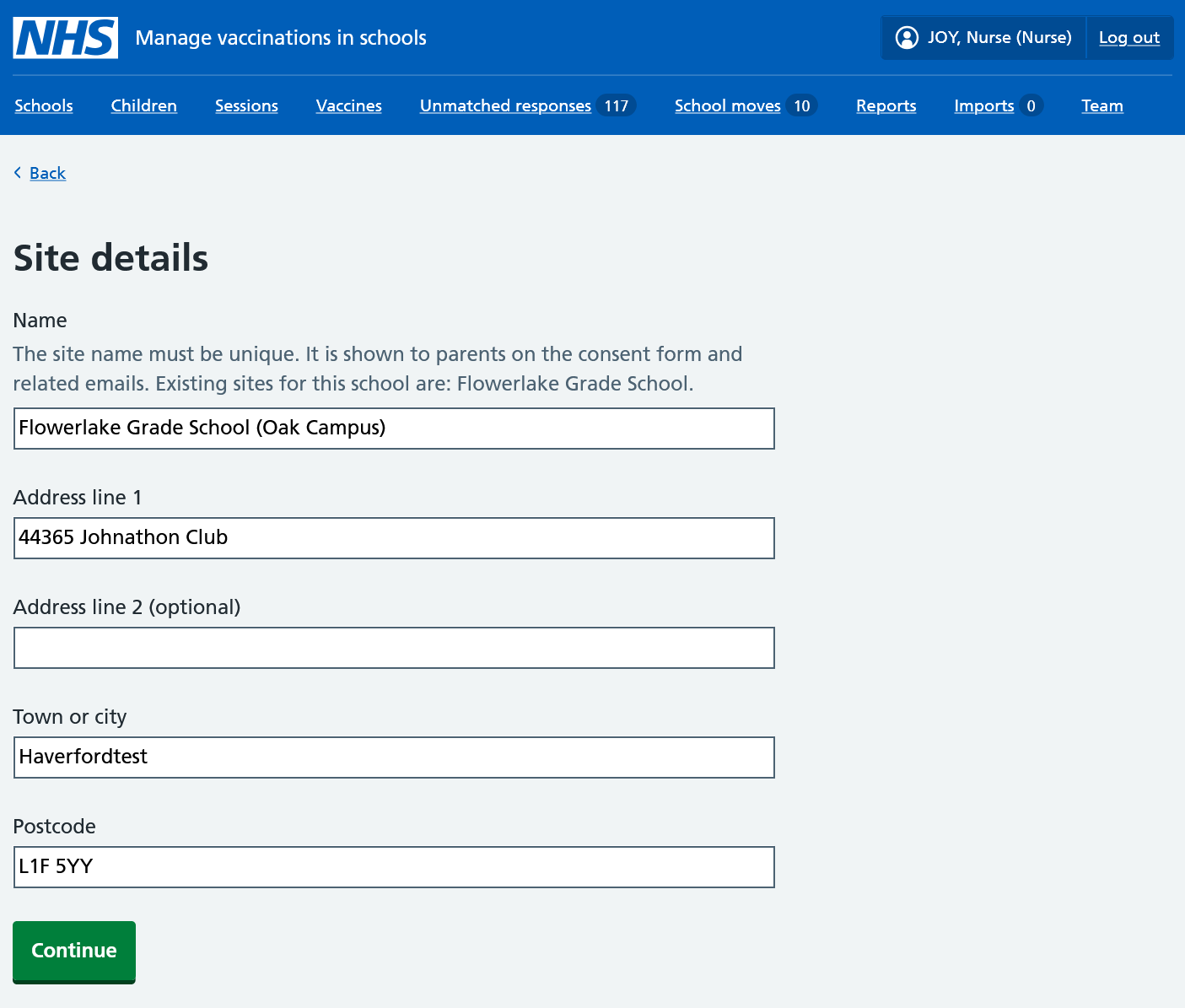
- Add the name of the site, adjust the address if necessary, and select Continue.
The new site will have the same URN as the main (parent) school with an extra letter at the end. Mavis will automatically add A to the parent school URN, and B to the 1st extra site, C to the 2nd one, and so on.
- You’ll see the pre-selected year groups for that site. You can deselect any year groups and/or select additional ones as necessary.
- Check the details. Select Back if you need to change the name or address of the new site, or Change parent school if you need to add this site to a different school.
- Select Add site.
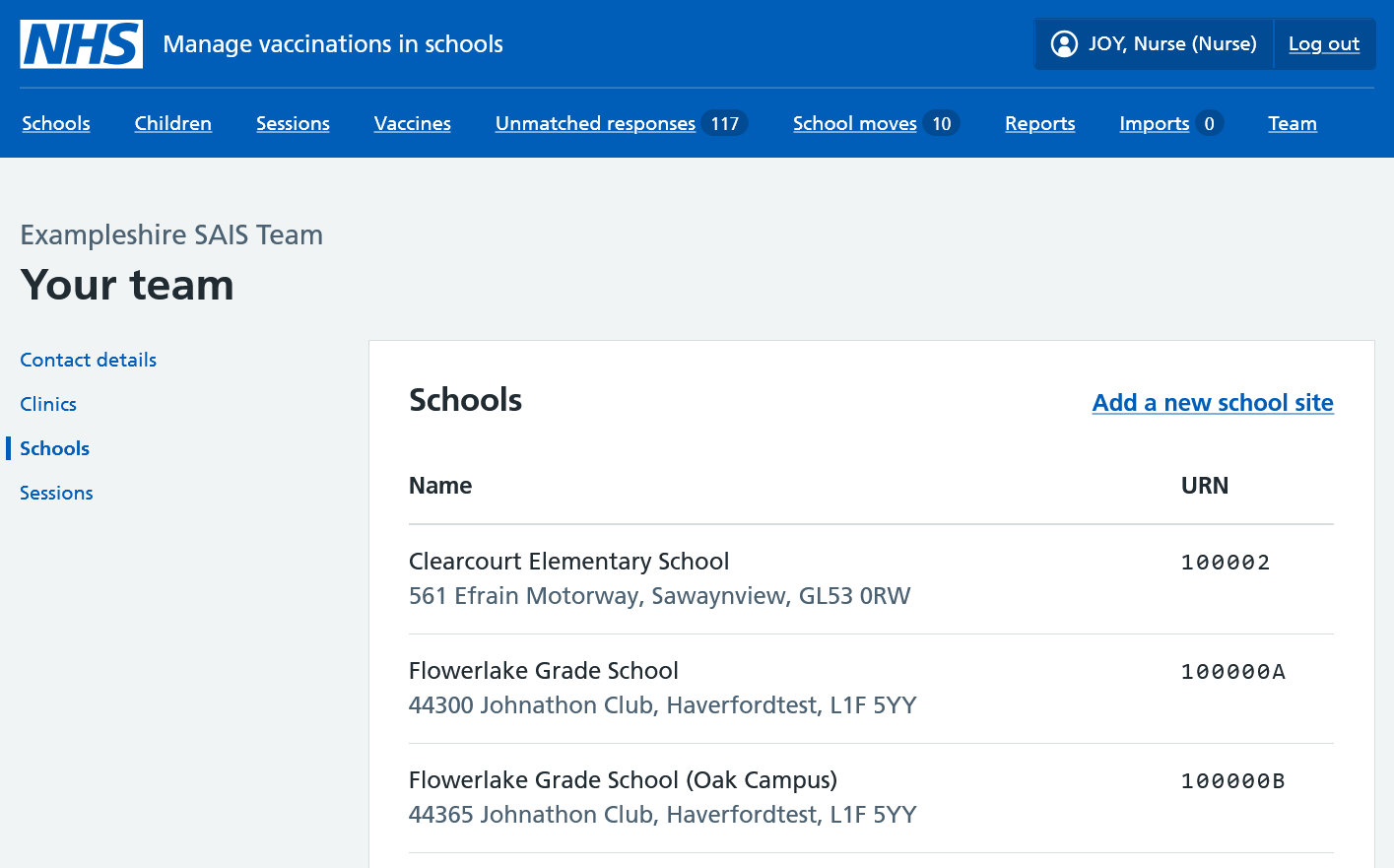
Naming a school site
When you name a school site, consider the following points:
- each site name must be unique
- site names appear in emails and text messages to parents, and the online consent form, so the name should be clear to parents
- schools and sites are listed alphabetically in Mavis - if you want to see a school and its sites appear together, start each site name with the school name, for example, ‘Parkview School, Station Road site’
Editing school sites
You can edit a site’s name and/or address, or the year groups it serves.
- Go to the Team tab.
- Select Schools.
- Find the site you need to amend and click Edit.
- Make any changes you need to make then select Continue.
- Review the updated information and select Save changes.
Adding year groups to schools already in Mavis
If a school does not include the correct school years, you can add them.
To add year groups to a school that’s already in Mavis:
- Go to the Team tab.
- Select Schools.
- Find the school you need to add to and select Edit.
- Select Change on the Year groups row.
- Select the year group(s) you need to add from the list that appears and click Continue.
- Review your changes and select Save changes.
To add year groups to a school site that’s already on Mavis, see Editing school sites (above).
You can only add year groups to a school or school site that’s already in Mavis, you cannot remove them.