Using paper-based forms
If a parent requests a paper consent form, you can download and print the form from Mavis.
Once the parent returns the form, you can enter their response into Mavis using ‘Record a new consent response’.
Downloading a paper-based consent form
To download a consent form:
- Go to Sessions, then filter for Scheduled sessions.
- Select the relevant session.
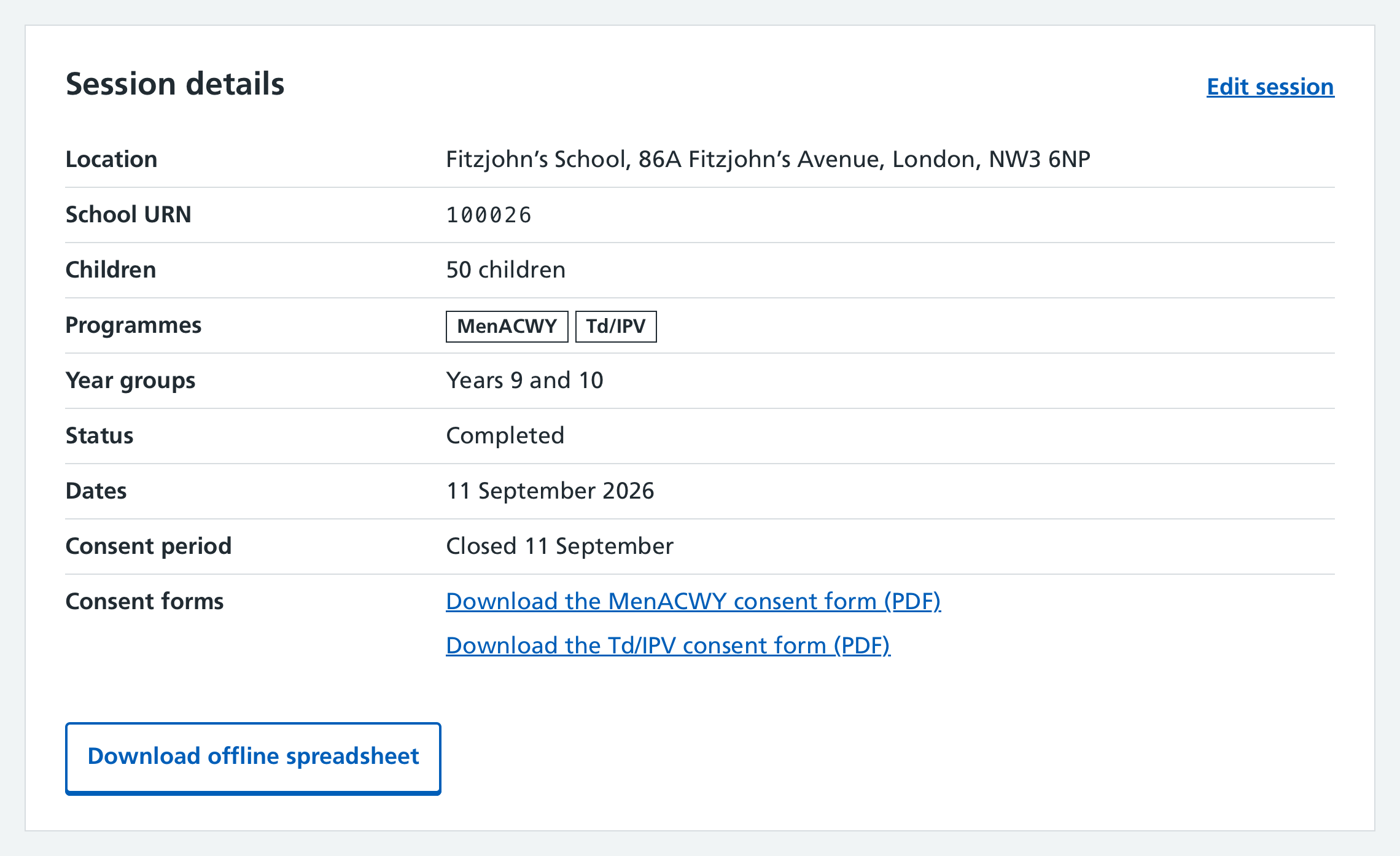
- At the bottom of the Overview tab, in the Session details area, you’ll find a link to the consent form for each programme in the session. Select the link to download the form.
- You can then print the form and send it to the parent who requested it.
Entering a consent response into Mavis from a paper form
To enter the parent’s consent response into Mavis:
- Go to Sessions and find the session. Select it.
- Go to the Children in session tab and filter for Needs consent.
- Select the child’s name to open their name.
- Select Record a new consent response.
- Select the person who responded (or Add a new parental contact to add new details).
- Go through the consent flow, making sure to select Paper as the way the response was given.