Managing clinic appointments
You can use Mavis to:
- view appointments for a clinic session
- resolve unmatched appointments (appointments not matched to a child record)
- cancel appointments
- book a child into a clinic
Viewing appointments for a clinic session
To view appointments for a session:
- Go to Sessions.
- Filter for Community clinic sessions.
- Find and select the clinic session you’re interested in.
- Select the Appointments session navigation link.
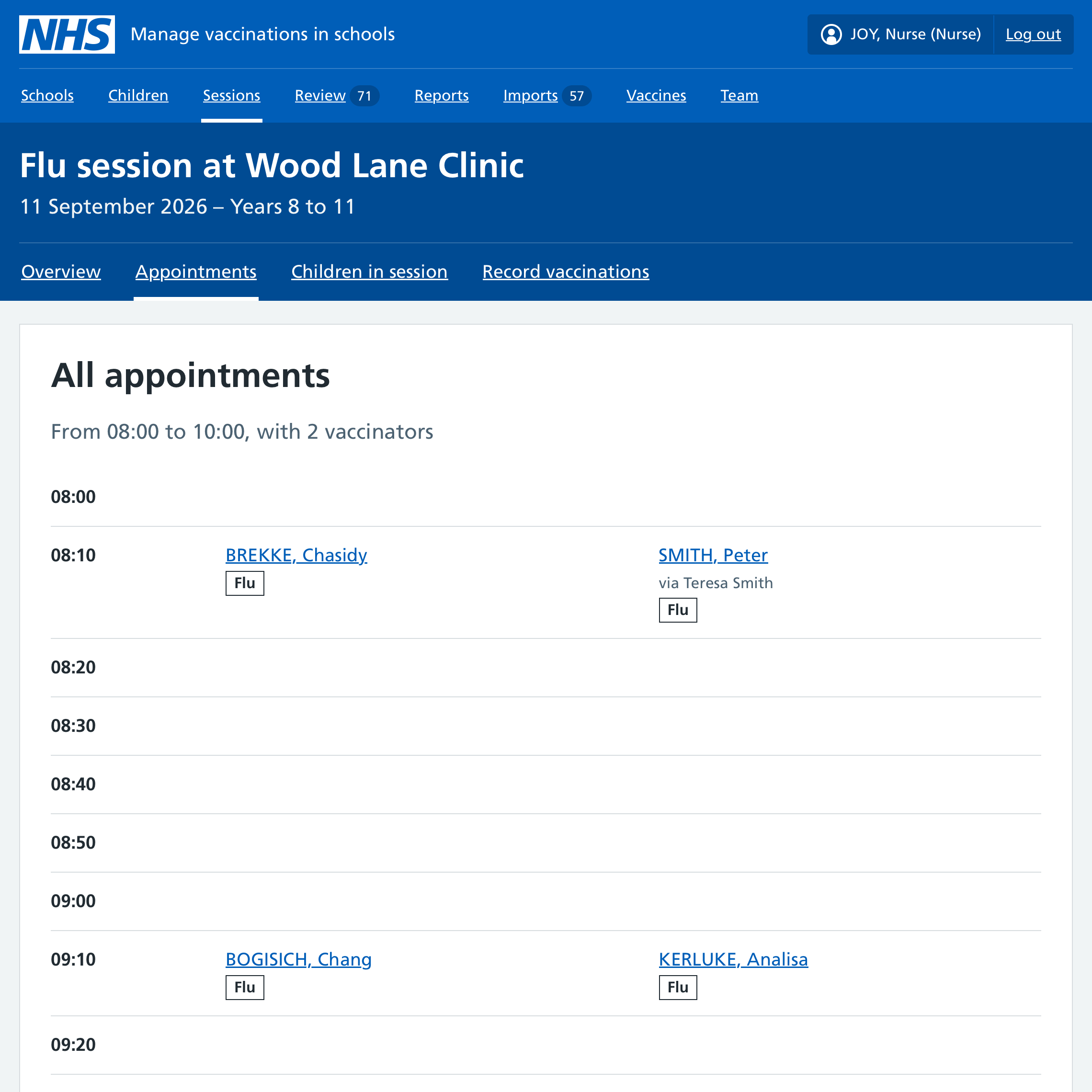
You’ll see:
- all appointment slots for the session
- the names of children with booked appointments
- the vaccination programmes they’re booked for
Resolving unmatched clinic appointments
Sometimes Mavis cannot automatically match the details entered by a parent with an existing child record. These appointments remain unmatched until you review and resolve them.
Find unmatched appointments
You can view unmatched clinic appointments across your whole cohort or for a specific clinic session.
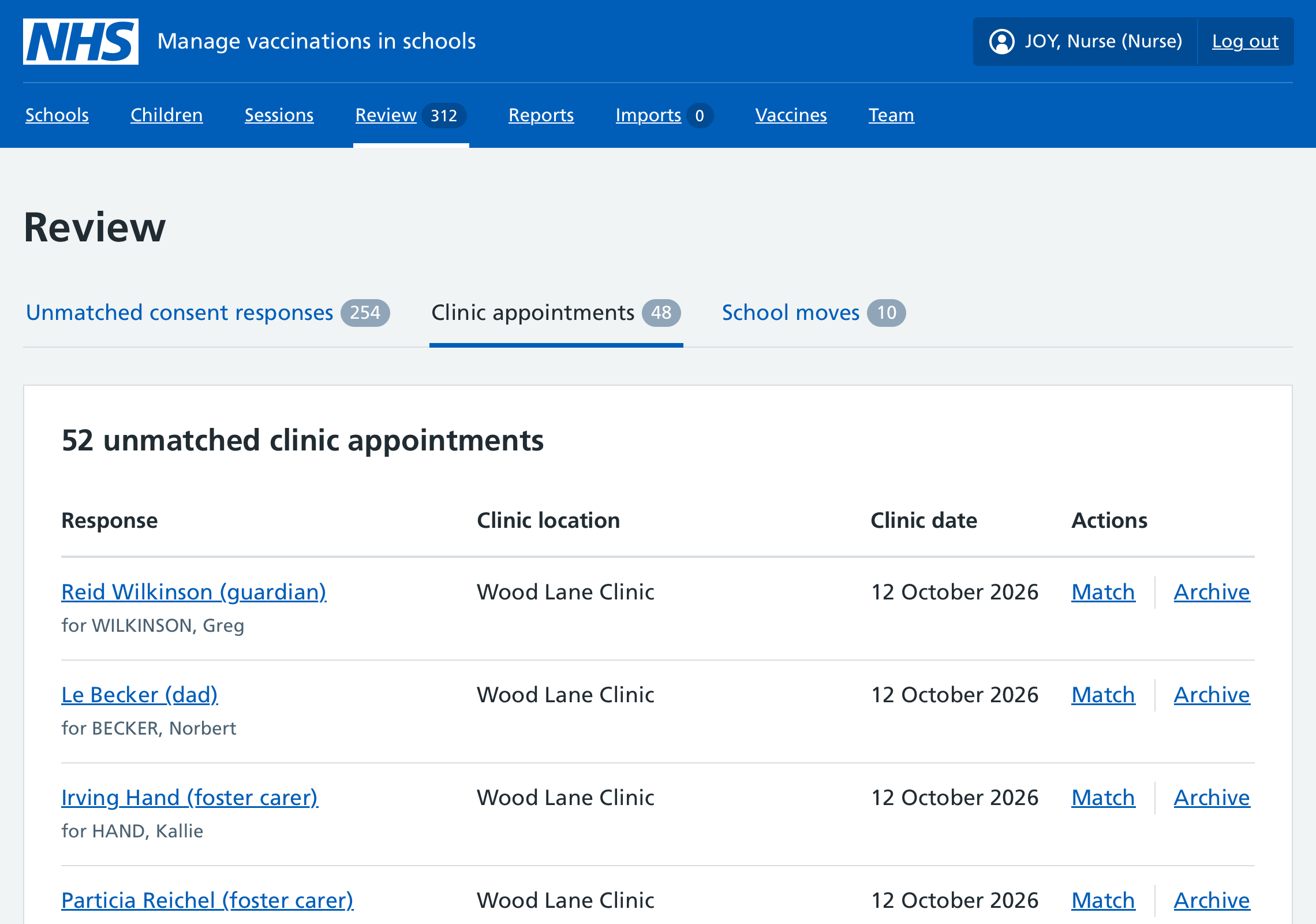
To see all unmatched clinic appointments for your cohort:
- Select Review in the main navigation.
- Select Clinic appointments.
To see unmatched appointments for a particular clinic session:
- Go to Sessions.
- Filter for Community clinic sessions.
- Find and select the clinic session.
- On the overview, select the Unmatched clinic appointments link in the Action required section.
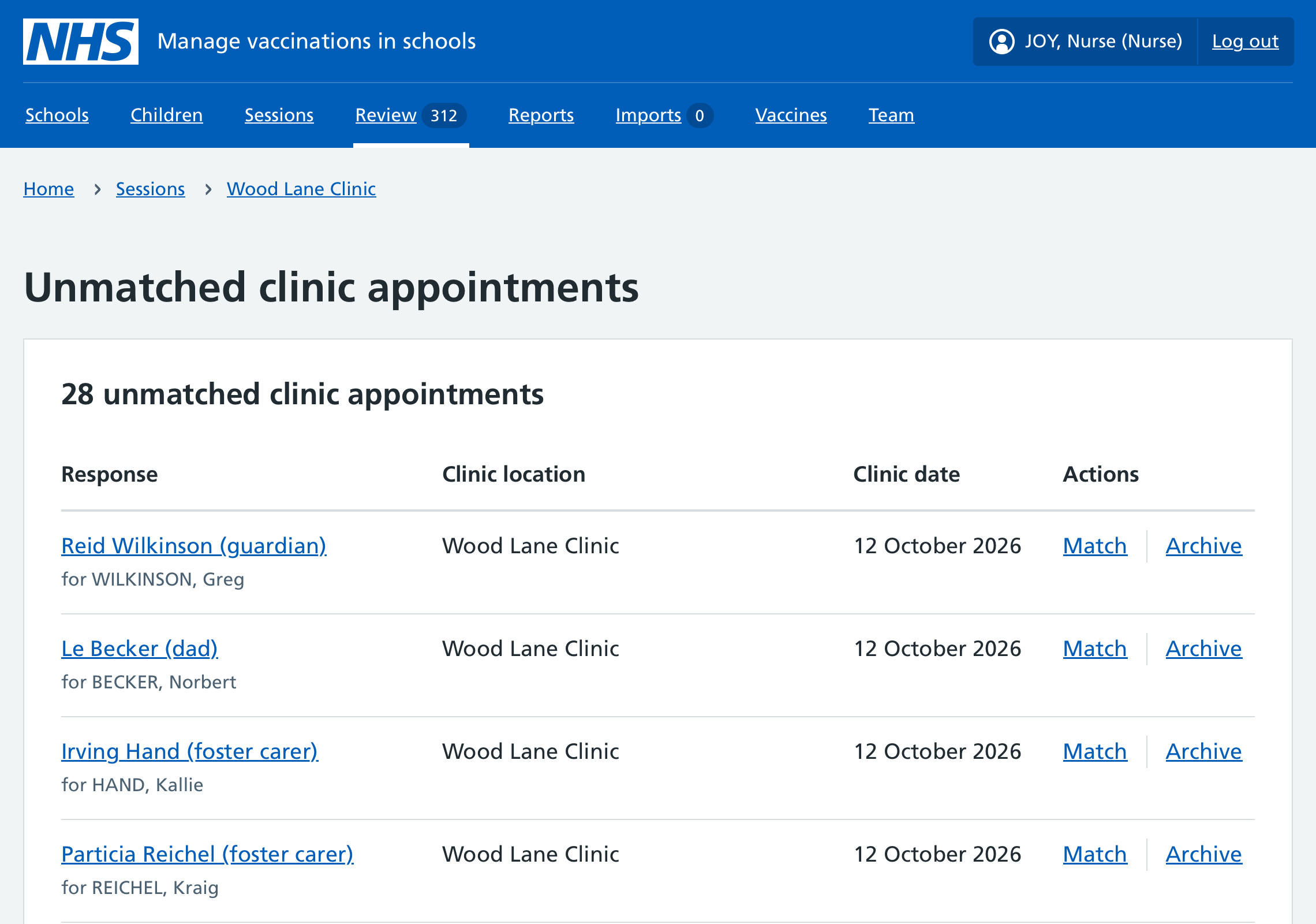
Both routes display a list of unmatched clinic appointments where you can match or archive appointments, or create a new child record and link it to the appointment.
Match an appointment to an existing child record
From the list of unmatched clinic appointments:
- Find the unmatched appointment and select Match.
- You’ll be prompted to search for a child record that matches the child’s name on the appointment. You can search by name or date of birth.
- If you think you’ve found a match, select the child’s name.
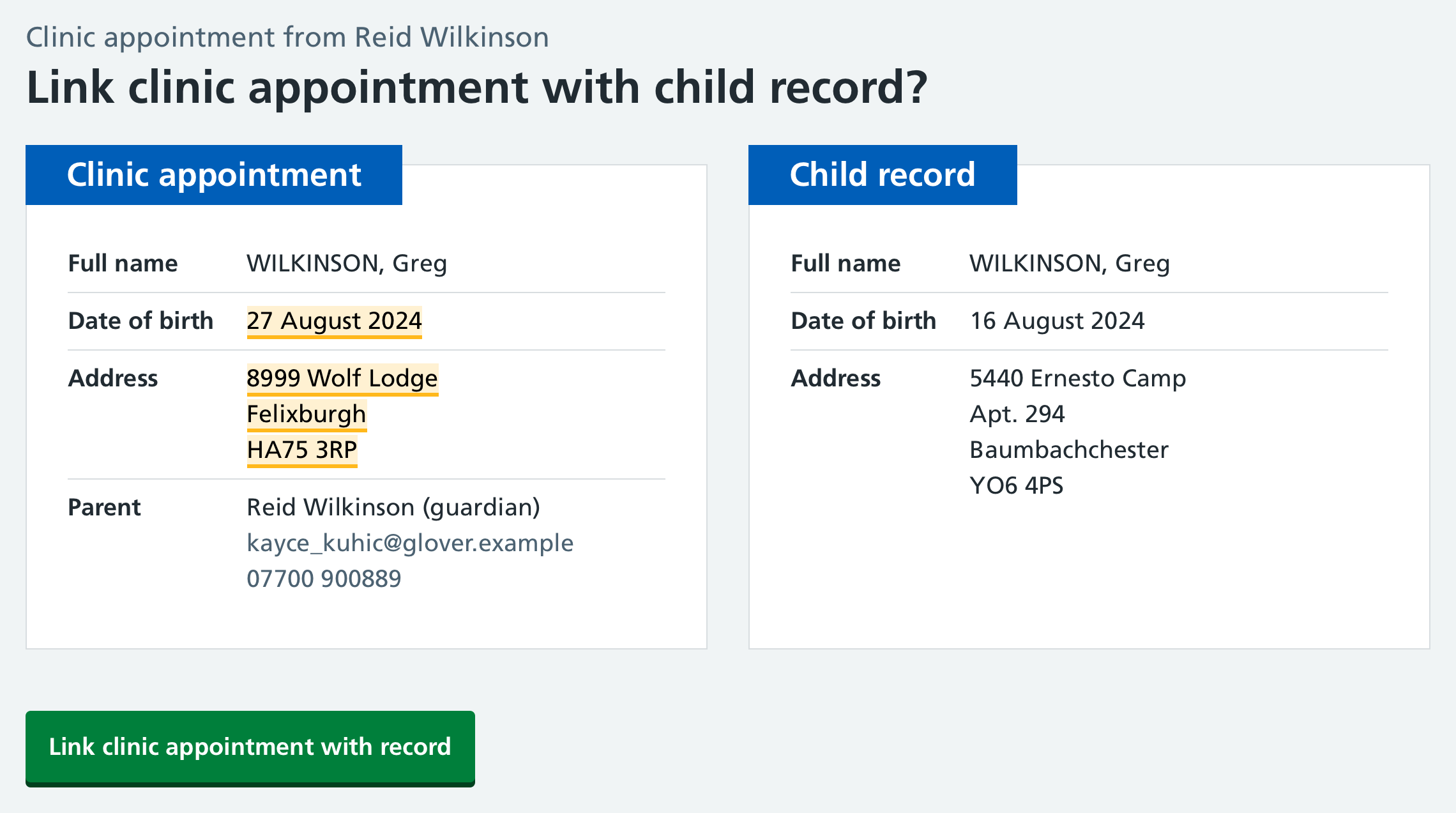
- Mavis displays the child record you’ve selected next to the clinic appointment details. Compare both sets of details.
- If you believe it’s a match, select Link clinic appointment with record.
Create a new child record
If you cannot find a matching child record, you can create one using the details from the clinic appointment.
To do this:
- Find the unmatched appointment and select Match.
- On the search page, select View full clinic appointment.
- Select Create new record.
- Check the details that will be used to create the child record. If you’re happy to go ahead, select Create a new record from clinic appointment.
Mavis creates the child record and links it to the clinic appointment.
Archive an unmatched appointment
You can archive an unmatched appointment if it’s not needed, for example, if it’s a duplicate or was created in error.
Once you archive an appointment, you will no longer be able to view it in Mavis or undo the archive.
To archive an appointment:
- Find the unmatched appointment and select Archive.
- Enter the reason for archiving the appointment in Notes.
- To confirm, select Archive clinic appointment.
Change an appointment location, date or time
To edit an appointment:
- Go to the clinic session and select Appointments.
- Select the appointment (it must be matched to a child record before you can edit it).
- Select the programme, for example Flu.
- Select Edit appointment.
Then Change the relevant details.
Cancelling a clinic appointment
You can cancel a child’s clinic appointment if they no longer need the vaccination or need to book another appointment.
-
Go to Sessions and select the clinic session.
-
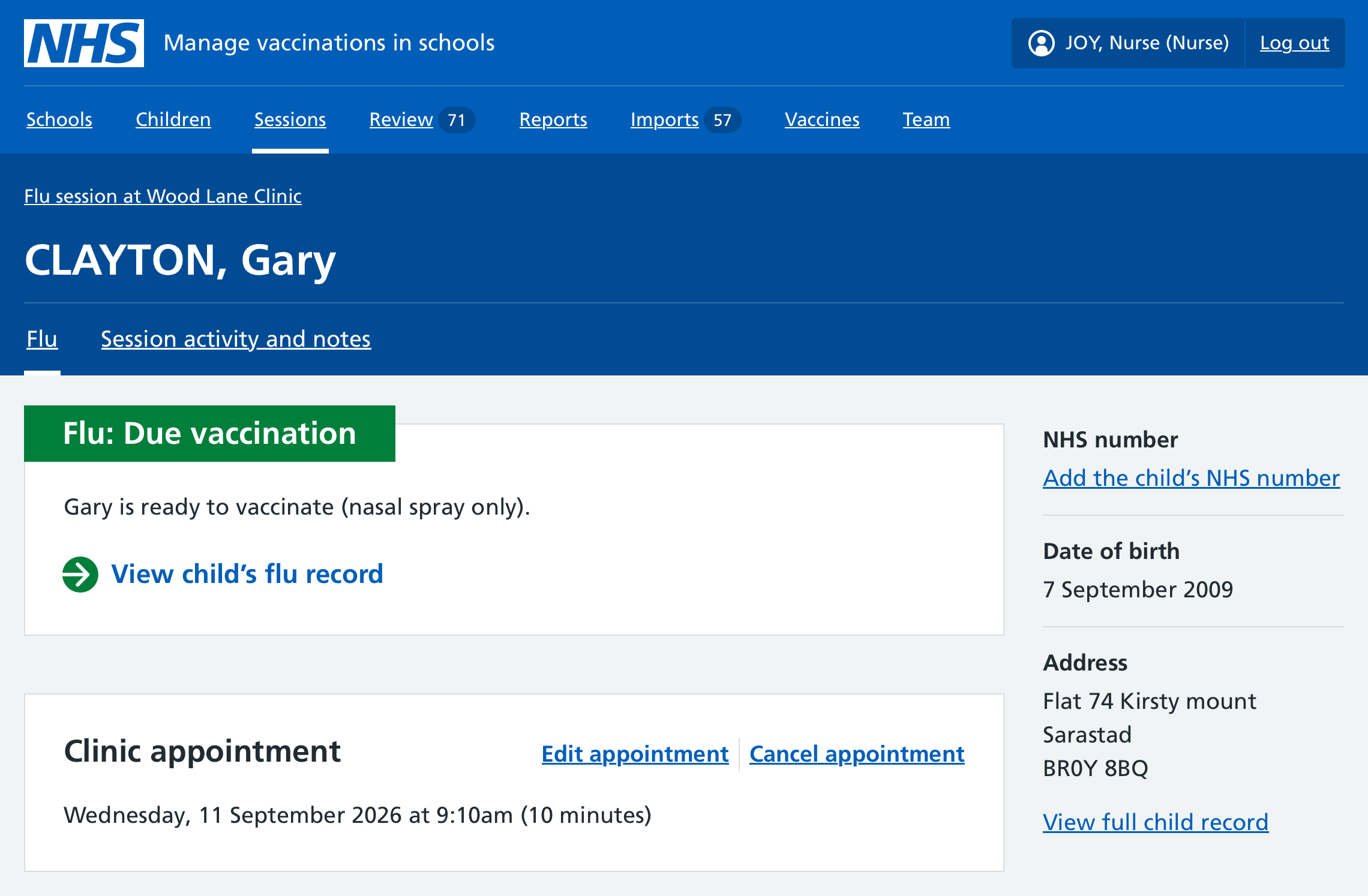
Select the Children in session navigation link.
-
Find the child whose appointment you want to cancel and select their name.
-
In the Clinic appointment section, select Cancel appointment.
-
Choose whether you want the cancellation message sent to the parent to include a booking link so they can book another appointment.
-
Select Continue.
-
Check the appointment details. To go ahead and cancel, select Yes, cancel this appointment.
Booking a child into a clinic
You can create a clinic appointment for a child on behalf of their parent or guardian.
-
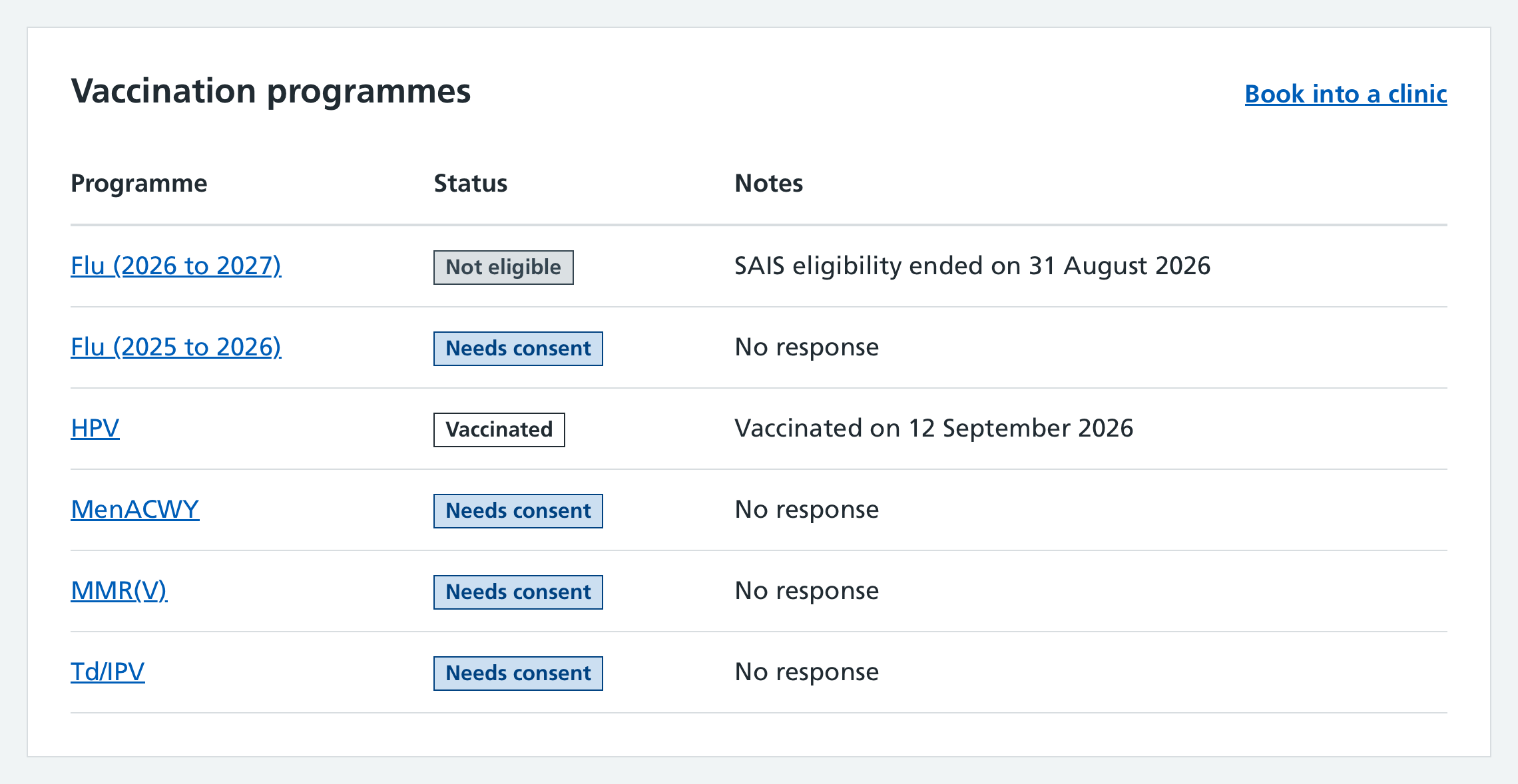
Select Children in the main navigation. The list of children shows each child’s clinic status for each vaccination programme (Eligible for clinic, Invited or Booked).
-
Find the child and select their name to open their record.
-
In the Vaccination programmes section of their record, select Book into a clinic.
-
Select the vaccinations to include in the appointment, then Continue. Mavis only shows vaccinations the child is eligible for and is not already scheduled to have at an upcoming school session.
-
Say whether the child needs extra support during vaccination sessions, then select Continue.
-
Enter the parent or guardian’s preferred town, city or postcode for the clinic location, then select Continue.
-
Select the correct location from the search results, then Continue.
-
Select an available clinic, then Continue. Clinics are shown in order of distance from the preferred location. Mavis also shows the next available appointment date for each clinic.
-
Select an appointment date, then Continue.
-
Select a time range, then Continue.
-
Select an appointment time, then Continue. Mavis shows how many appointments are available at each time.
-
Select the contact for the appointment, then Continue. This person will receive the booking confirmation and appointment reminders. You can select an existing contact or enter a new one.
-
Check the contact details. You can update them if needed. Select Continue.
-
Check the child, appointment and contact details. Use the Change links if you need to update anything.
-
If the details are correct, select Add this appointment.
The selected contact will receive confirmation of the appointment immediately.
Booking an appointment directly from a clinic session
You can book an appointment directly from a clinic session that is scheduled or in progress. This can help save time, such as when transferring bookings from another system.
From the clinic session overview you can book an appointment using:
- an available appointment slot
- the Children in session navigation link
Using an available appointment slot
- Select Appointments.
- Select Book for the relevant slot.
- Complete the appointment booking form.
Using the Children in session link
- Select Children in session.
- Select Add a child to this clinic.
- Complete the appointment booking form.