Managing a clinic session
You can manage a clinic session using the session overview.
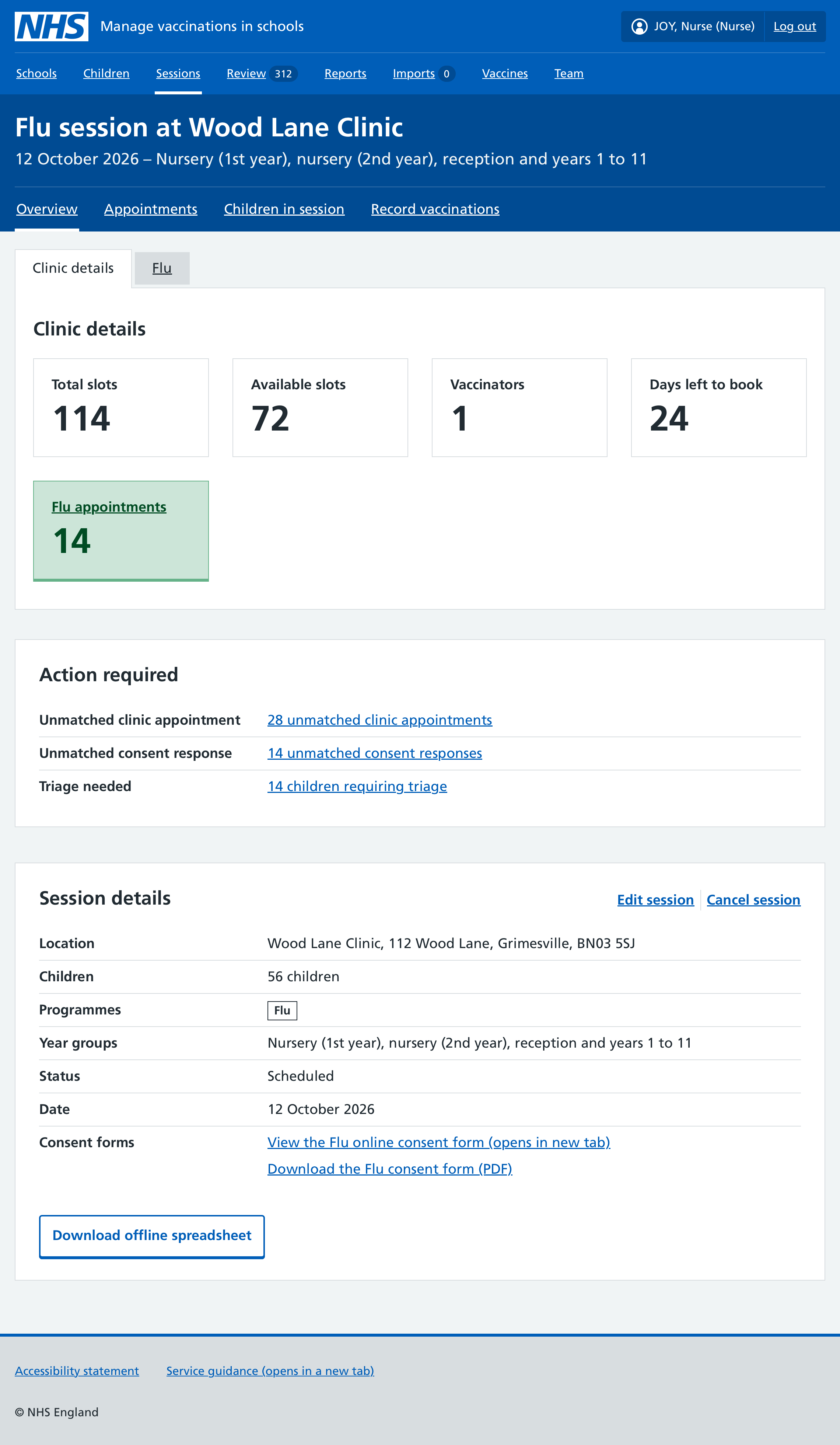
Viewing children who are booked into a session
To view children booked into a session, select the programme you’re interested in (for example Flu appointments from the Clinic details tab) to view children booked for that programme.
Appointments
The Appointments session navigation link shows the current appointments booked for the session.
Each appointment shows the child’s name as a link.
If the appointment does not need matching to a child record, the link takes you to the child’s session record. This is where you can check and record information such as triage and consent, and add notes about the appointment. During the session, you can register attendance if that’s enabled for your team.
If the appointment needs matching to a child record, the link takes you to a page where you can resolve the issue.
If there are multiple vaccination periods, this page will show appointments for ‘vaccination period 1’, ‘vaccination period 2’ and so on.
Editing a clinic session
To edit a clinic session:
- Select the Sessions top-level navigation link, find the relevant session and select it.
- On the session overview, select Edit session on the session details card.
- Select Change to change session details.
If there are no booked appointments
If there are no booked appointments yet, you can change any session detail except Type.
Once you’re done, select Save changes.
If there are booked appointments
If appointments are booked or being booked, you can only change:
- Programmes
- Register attendance
- Vaccination periods
- Vaccinators
If changes cause appointments to be cancelled
The parent will get a message confirming the appointment is cancelled if the appointment:
- was scheduled to take place at a time that is no longer available
- is cancelled because there are not enough vaccinators left to cover all appointments
Before saving changes, you will see a warning about cancellations. Appointments are cancelled in reverse order of booking.
Cancelling a clinic session
You can cancel a session if it has not started yet. To do this:
- Select the Go to Sessions top-level navigation link.
- Find the session you want to cancel and select it.
- On the session overview, in the Session details section, select Cancel session.
If there are no booked appointments
If there are no booked appointments, you will be asked to confirm the cancellation.
If there are booked appointments
If there are booked appointments, you will see an alert showing how many appointments are booked and that parents will receive a message about the cancellation.
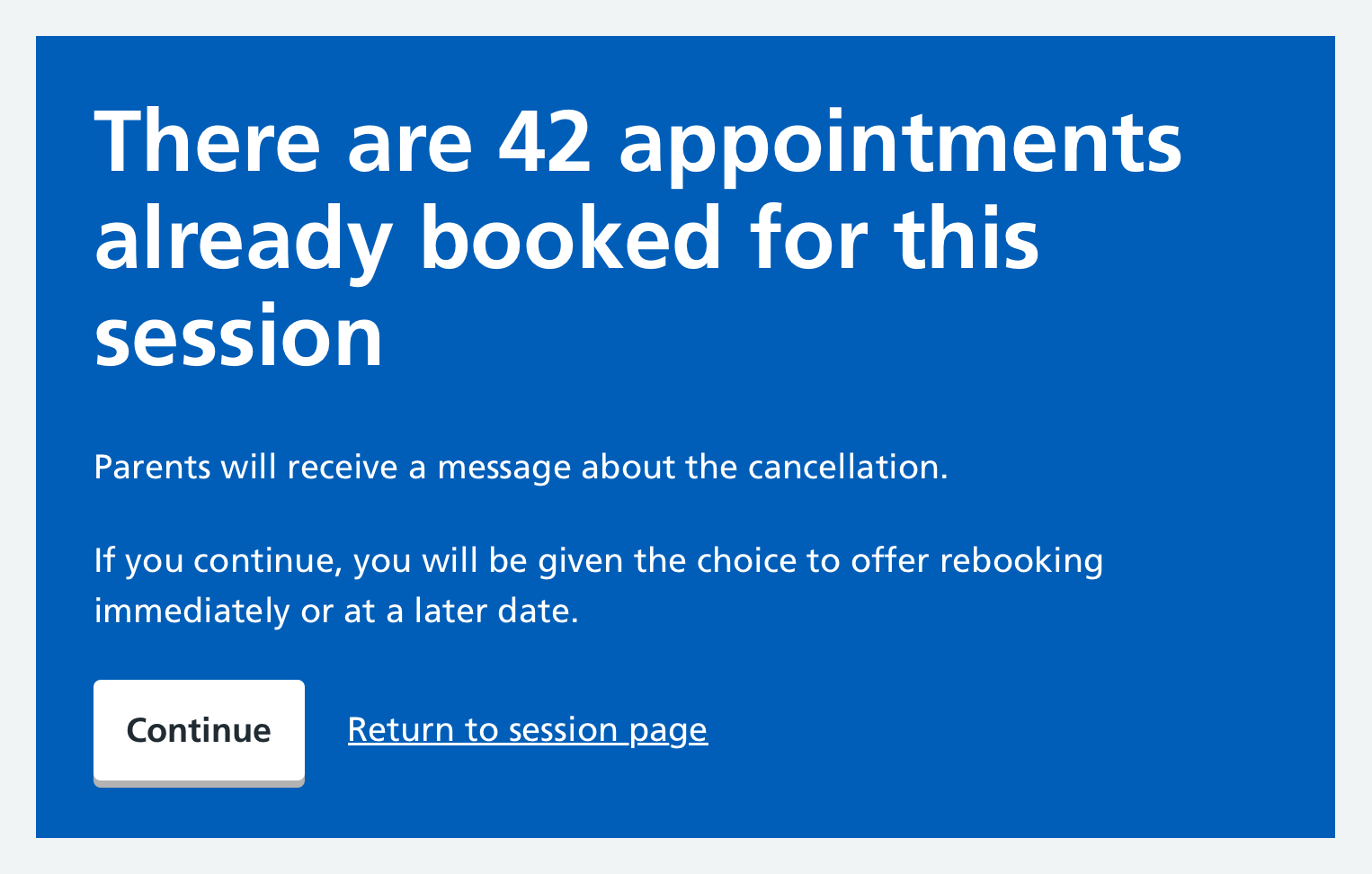
If you select Continue you must select whether the parent gets a rebooking link in the cancellation message or an invitation later.
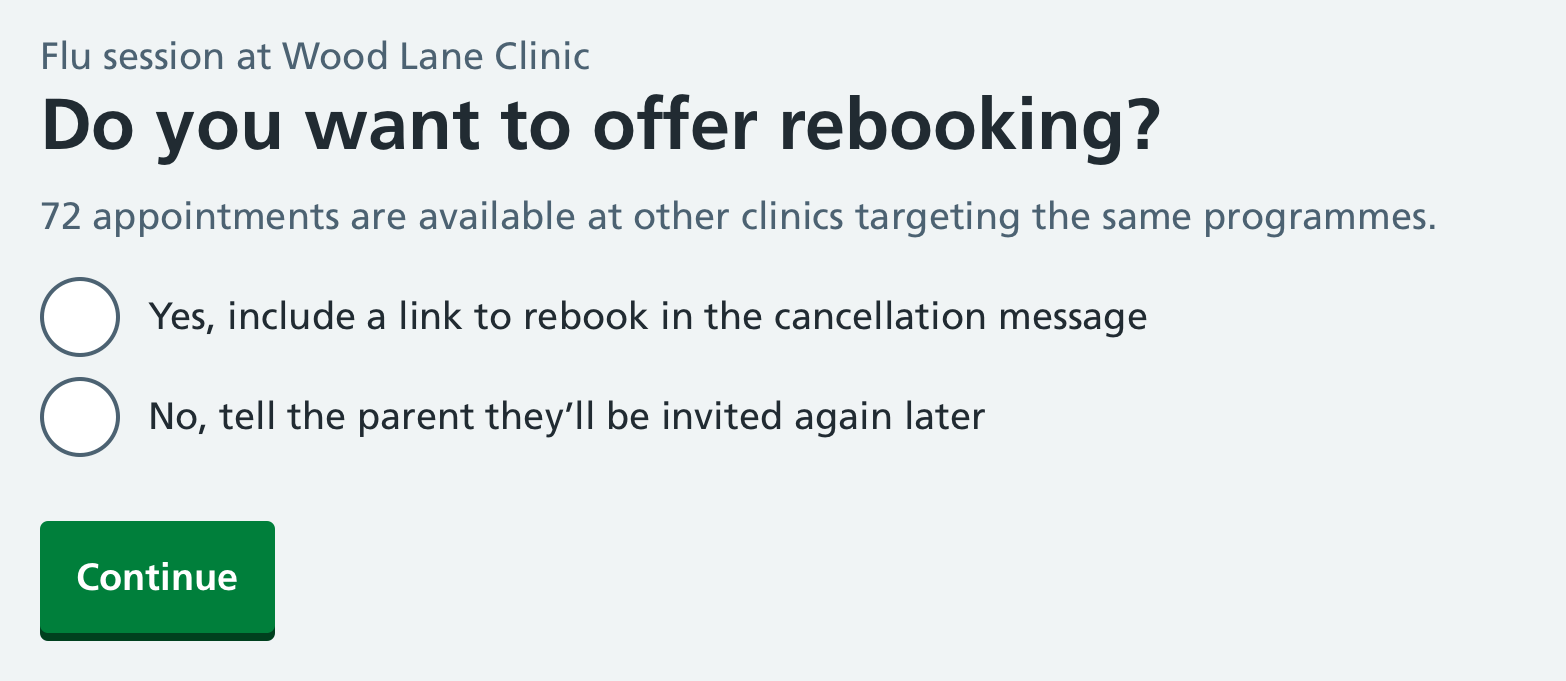
Select Continue to confirm the cancellation.