Inviting children to a clinic session
To invite children to a clinic session, you can:
- use the Eligible for clinic filter in Children in the main navigation
- share a booking link for your clinic sessions (for example, in an advert so that any parent can make an appointment for their child)
You can also:
- invite them from a school session overview (if they’ve missed school vaccination sessions)
- invite them individually from a child record
- invite children whose school is unknown or who are home educated
Parents do not receive automatic reminders for clinic invitations.
Eligible for clinic filter
To use the filter:
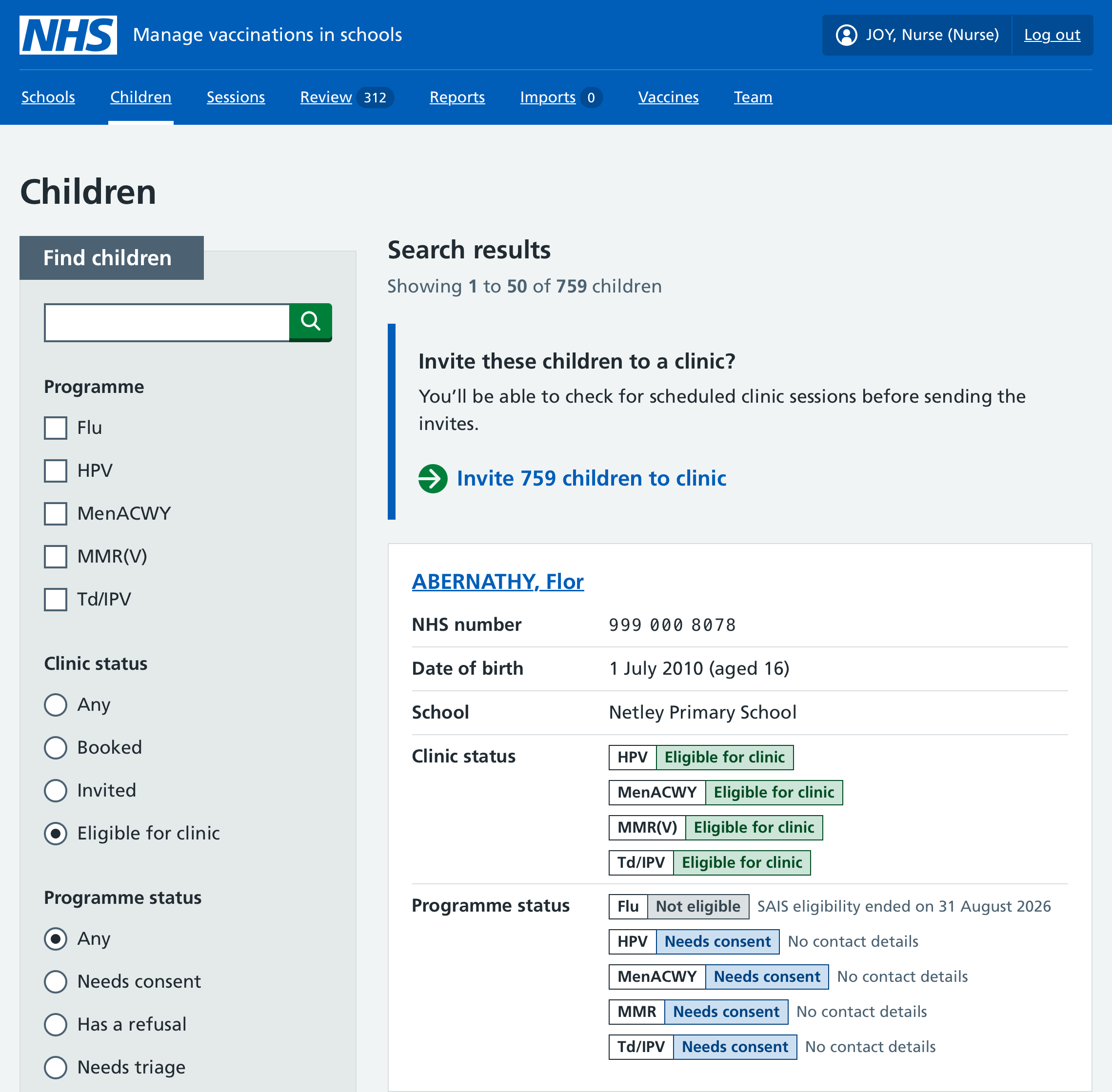
- Select Children in the main navigation.
- Select Eligible for clinic, the relevant vaccination programmes, and any other filters you need.
- Select Update results.
- Select Invite × children to clinic (x is the number of children).
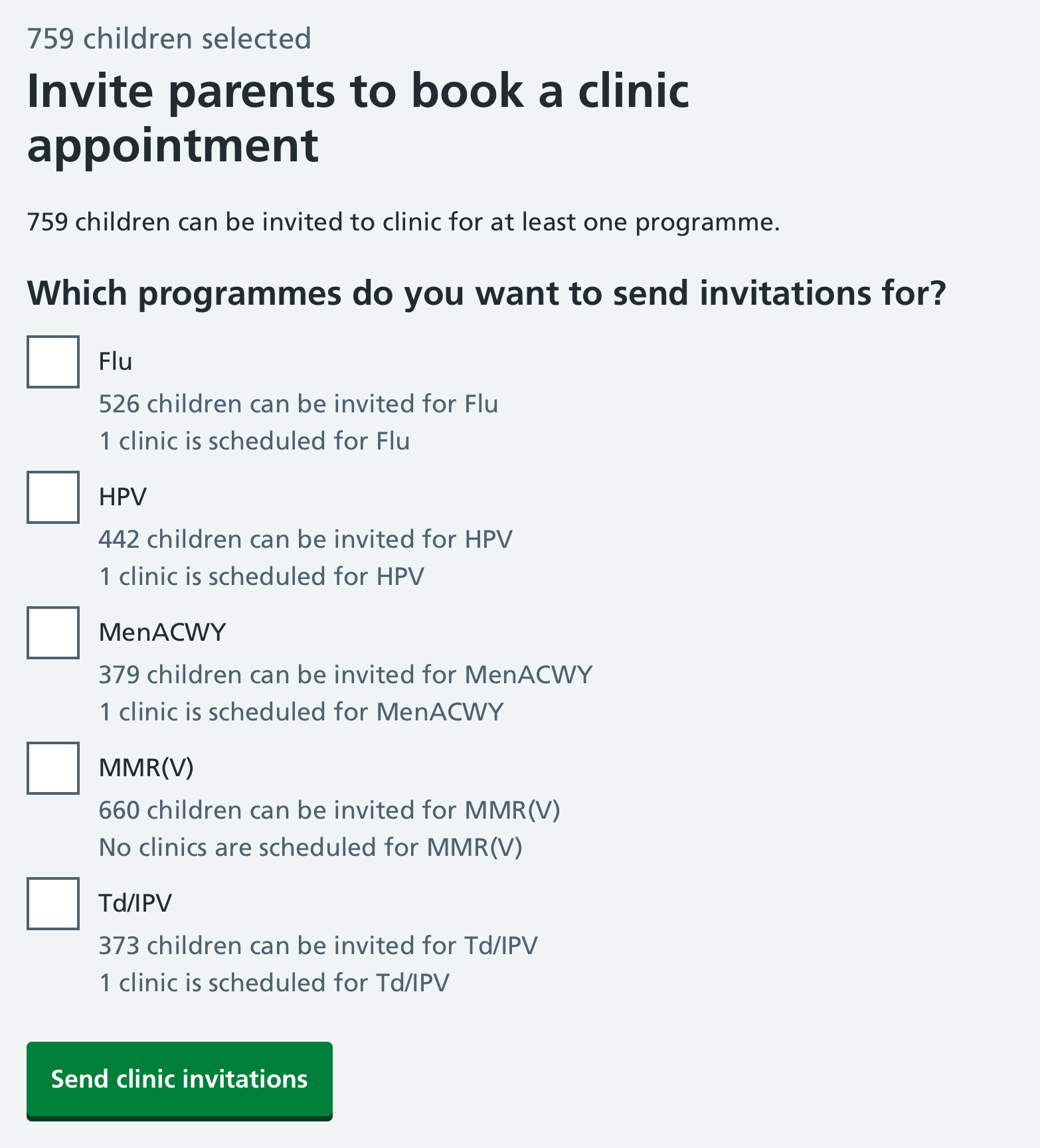
To confirm, select Send clinic invitations. If you previously selected multiple programmes, you will need to confirm the programmes for the invitations. No invitations will be sent to children who do not have contact details in Mavis.
How the filter works
Mavis uses all of the following rules to work out, for each programme, which children can be invited:
- they are eligible based on their age
- they are not already vaccinated
- they are not contraindicated
- their vaccination is not being delayed
- consent has been given or is missing
- a parent told us they did not consent, but requested a follow-up call from a SAIS team
- their contact details are in Mavis
One of the following rules must also apply:
- they were not vaccinated when their school sessions took place
- they are home educated
- they are at an unknown school
Share a booking link
- Go to Sessions.
- Select Share a booking link for clinics.
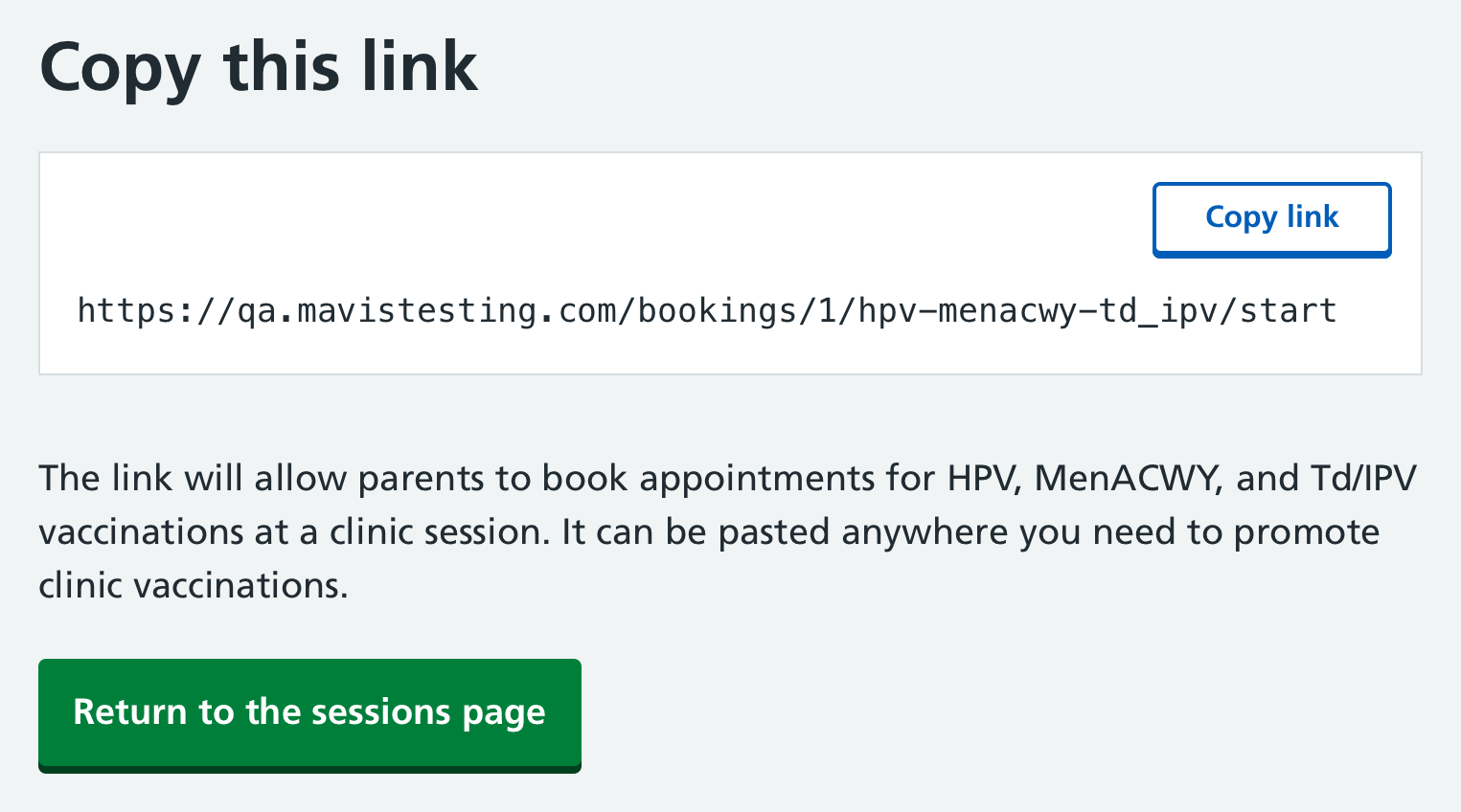
- Select which programmes to include in the invitation, then Continue. You will then see the invitation link.
Copy link and paste it where you need to.
Inviting children from a school session overview
Some children may have missed being vaccinated at a school session, for example if they were ill or on holiday at the time.
To send clinic invitations to these children:
- Go to the sessions for schools that you are not going to return to in this vaccination programme.
- In each school session, select the Send clinic invitations link (in the Action required section). This will show you a summary of how many invitations will be sent out.
- Select Send clinic invitations. Invitations are sent immediately.
Inviting individual children from a child record
You can invite individual children to a clinic directly from their record in Mavis. If an invitation has already been sent, you can send a reminder instead.
- From the dashboard, go to Children.
- Find the child you want to invite and open their record.
- Select the vaccination programme, either from the tabs at the top or the list in the Vaccination programmes area.
- Select Invite to upcoming clinic session at the bottom of the Sessions area. The invitation is sent immediately.
The Invite to upcoming clinic session button only shows if the child is due the vaccination.
If the child has already been invited, the button will show as Send clinic invitation reminder.
If the child is home educated or their school is unknown
Mavis no longer sends automatic clinic invitations to children who are home educated or have no known school.
You can manually send clinic invitations in bulk to the parents of children who:
- are home educated or have no known school
- are due a vaccination for the programme you select
- have not yet been invited to a clinic
- From the dashboard, go to Schools.
- Search for then select Home-educated or Unknown school, as needed.
- Select Send clinic invitations in the top left of the screen.
- Select the programmes you want to send invitations for.
- Select Send clinic invitations. Invitations are sent immediately.