Managing walk-ins
If a child comes to your clinic session without an appointment, you can vaccinate them. You just need to have:
- a spare timeslot
- the vaccine or vaccines the child needs
To add the child to your session:
- Select Children in the main navigation.
- Search for the child and select their name to open their record.
- If the child cannot be found you’ll need to upload the child’s details in a cohort upload - see Uploading cohorts.
- Select the tab for the appropriate vaccination programme.
- Select Add to current clinic session
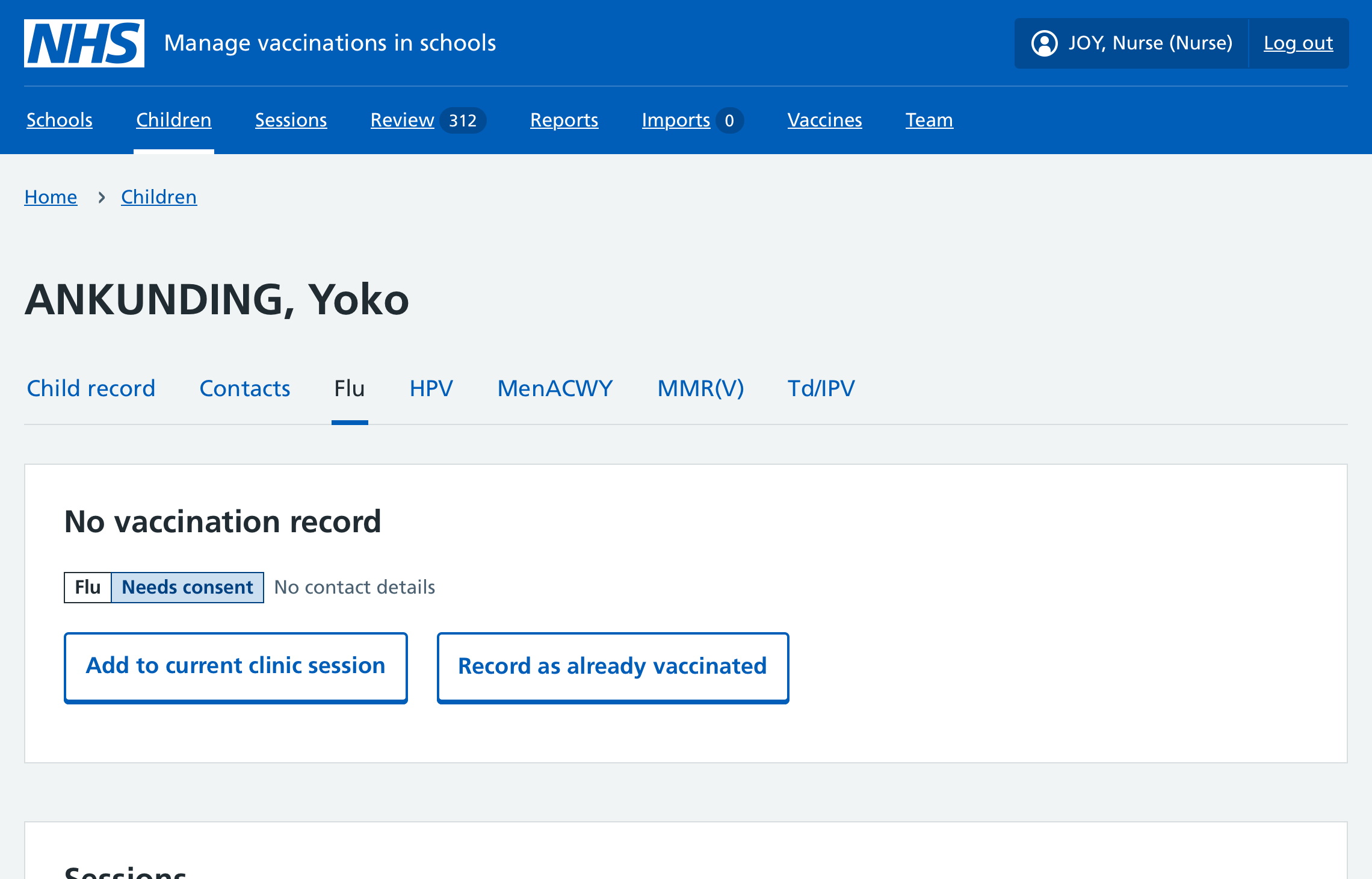
Only 1 session in progress
If yours is the only clinic session in progress, check that this is the child you want to add to this session and select Add to clinic.
Mavis adds the child to your session.
Multiple sessions in progress
If there are 2 or more clinic sessions in progress, select the clinic you want to add this child to and Continue.
Mavis adds the child to your session.
Programme not scheduled to run in this session
If the child needs a vaccine that you have in stock but is not scheduled for this session, you can create a new clinic session and add children to it - see Creating a clinic session.
- On the session details card, select Edit session
- On the Programmes row, select Change.
- Select the programme you need to add and Continue.
- Select Save changes.