Reviewing school moves
When a new file upload (of a cohort or class list) or a consent response indicates that a child has changed school, Mavis raises a school move for review before the change is applied to the child’s record.
You can also download a list of school moves that have been reviewed and confirmed.
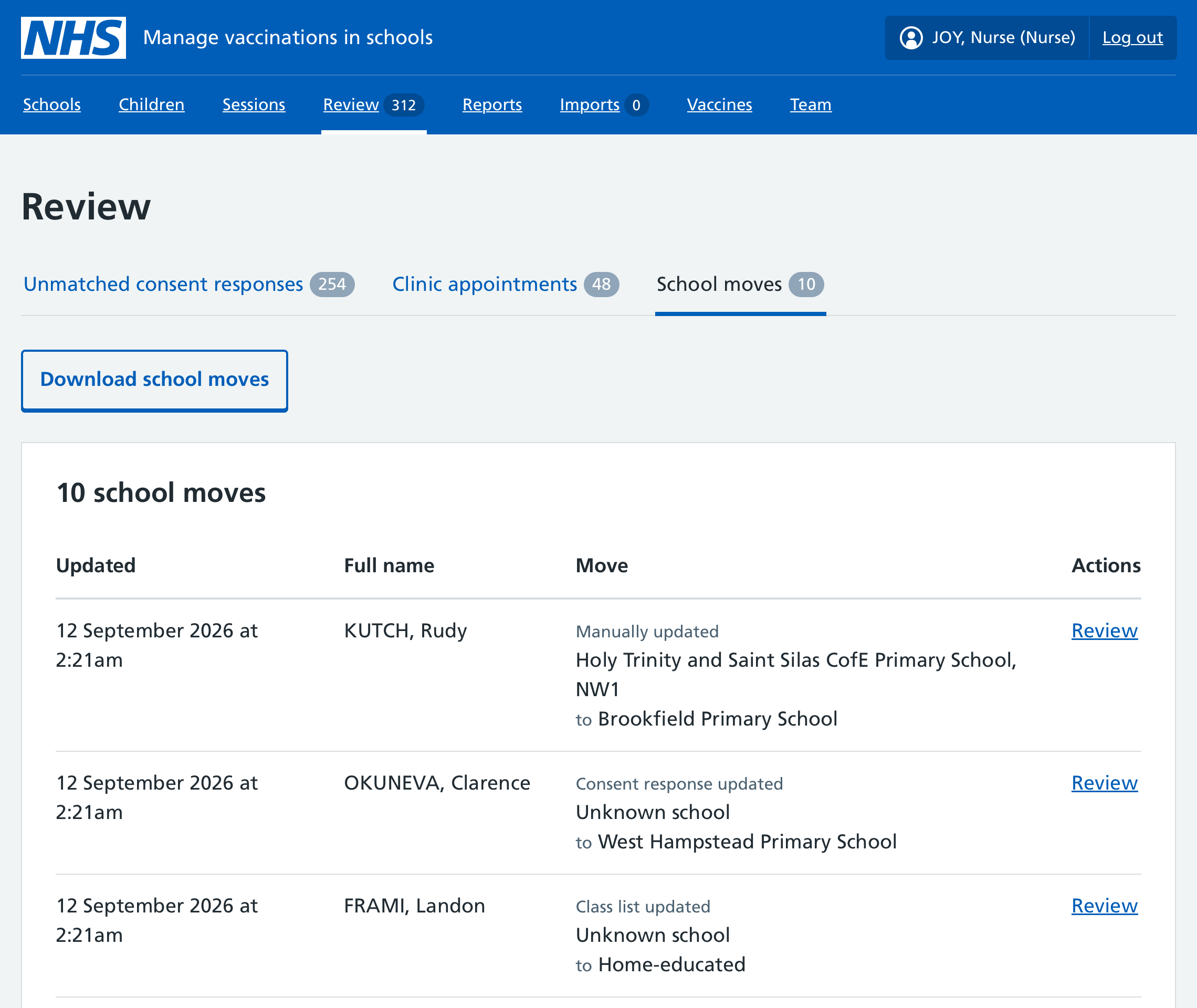
Reviewing school moves
To review a school move:
- Go to Review in the main navigation.
- Select the School moves tab.
- Select Review against a school move.
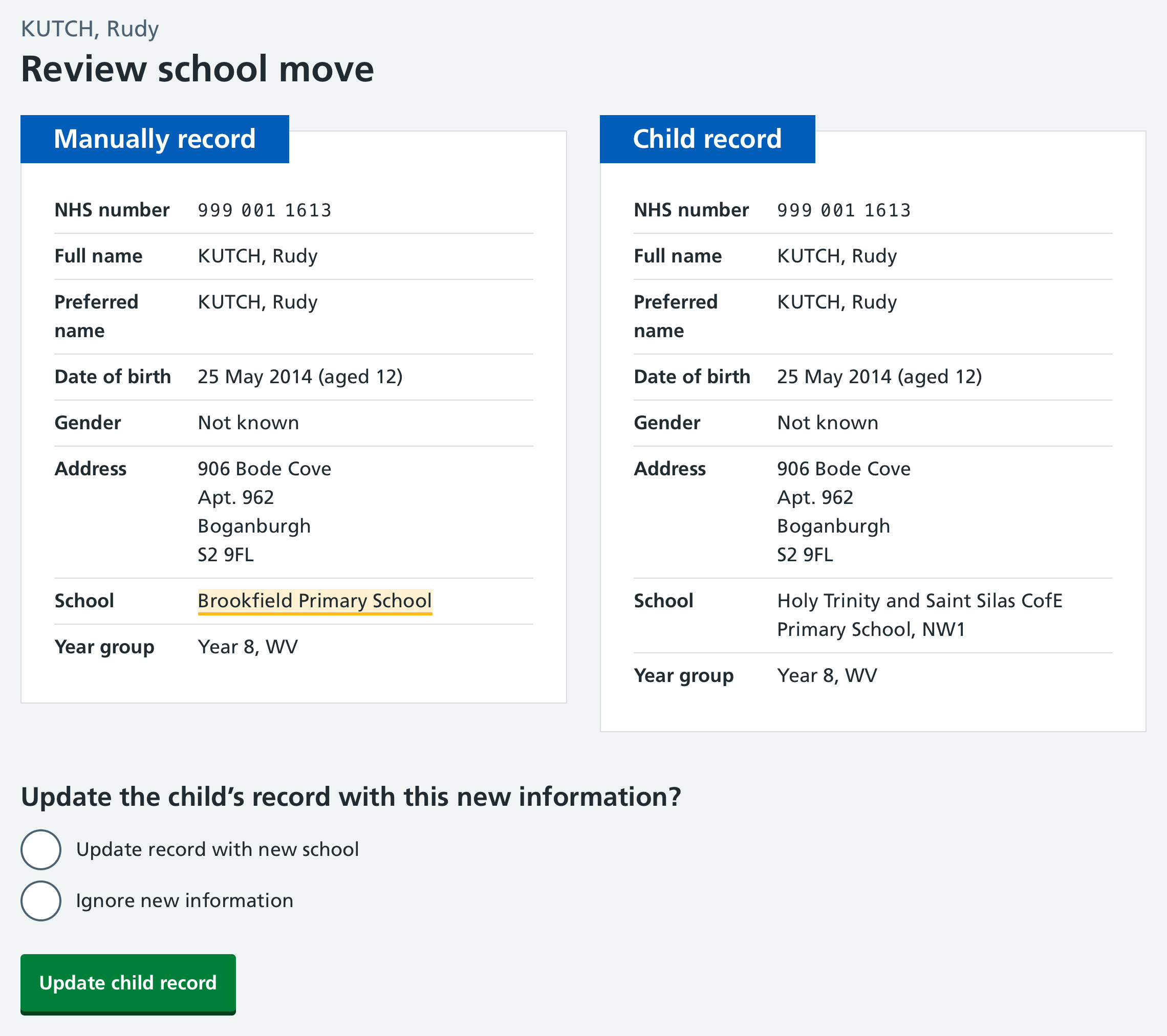
- Check the information provided: the new school is shown on the left with the updated information highlighted.
- Confirm or ignore the change of school for each child as appropriate.
Downloading confirmed school moves
You can download a CSV file of school moves that have been reviewed and confirmed.
To download confirmed school moves:
- Go to Review in the main navigation.
- Select the School moves tab.
- Select Download school moves.
- Enter the date range you want the download to cover, or leave the dates blank to download all confirmed school moves.
- Select Continue.
- Check the details of your download. To change the dates, select Change.
- Select Download CSV