Checking consent responses
Reviewing consent details for children in a session
You can review consent details for all children in a session.
First, find the session you’re interested in:
- Go to Sessions.
- Filter for Scheduled sessions.
- Find the session you want to look at and select it.
On the Overview tab you can see how many children in the session have the status Needs consent and Has a refusal for each programme.
The Action required section includes links to any children with:
- unmatched consent responses
- no consent response
- follow-up requests
- conflicting consent
On the Children in session tab, each child’s summary card shows Needs consent or Has a refusal in their programme status where relevant.
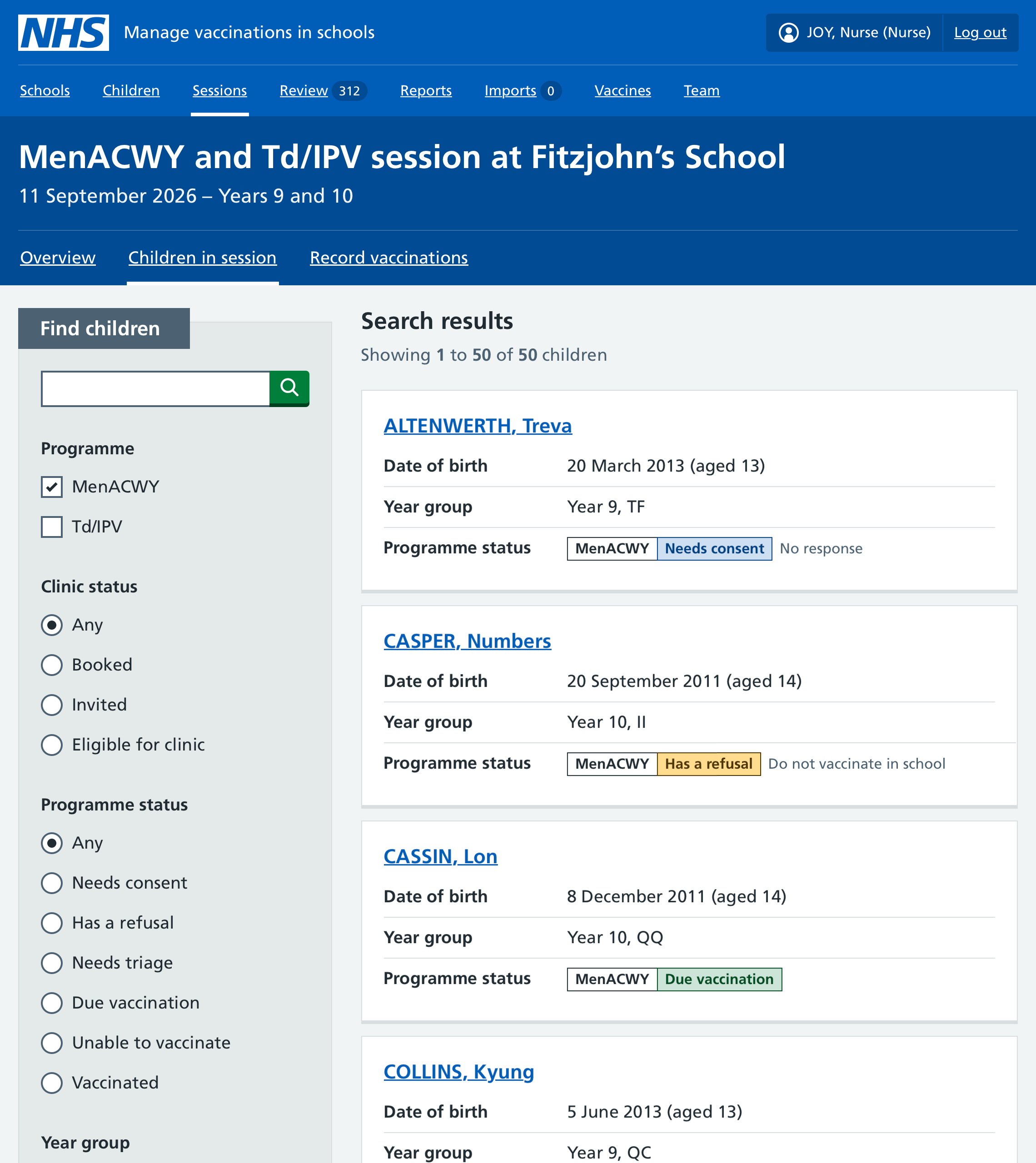
A child only has a status of Due vaccination if they have consent to be vaccinated.
You can use the Programme status filters to show only children matching your selection - for example, select Needs consent and No contact details to see only those children.
If the only reason given for consent refusal is “Do not want vaccination at school”, the child is eligible to be invited to a clinic.
If you want to see more details about consent for a child, select their name to open their record.
Flu and MMR(V) vaccine preferences
For flu and MMR(V) vaccinations, Mavis shows you which vaccines the child has consent for.
For flu, this will be one of the following:
- Nasal spray preferred (where consent has been given for both types of flu vaccine)
- Nasal spray only
- Injection only
For MMR or MMV, it will be one of the following:
- No preference
- Gelatine-free vaccine only
Reviewing unmatched consent responses
You can review unmatched consent responses across your whole cohort or for a specific session.
To see unmatched responses for the whole cohort:
- Select Review in the main navigation.
- Select the Unmatched consent responses tab.
To see unmatched responses for an individual session:
- Go to Sessions.
- Find the session you’re interested in and select it.
- If there are any unmatched responses, this will be flagged in the Action required section of the Overview tab. Select the link to display them.
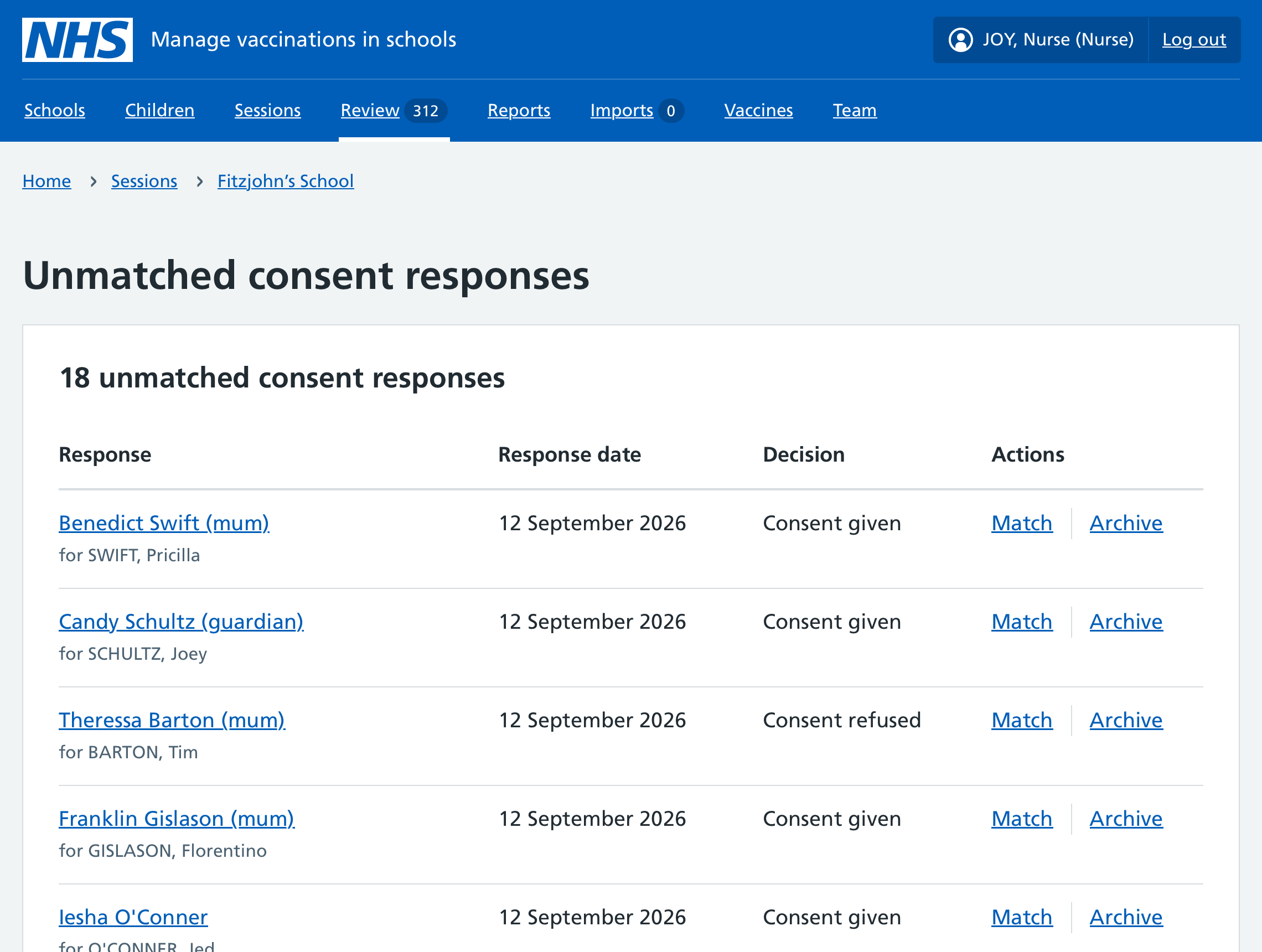
Matching responses
Once you’ve displayed the unmatched responses, try to match each child listed with an existing child record in Mavis.
-
Select Match.
-
You’ll be prompted to search for a child record that matches the child’s name. You can search by name or date of birth.
-
If you think you’ve found a match, select the child’s name. This will display details from the consent response next to details from the existing child record.
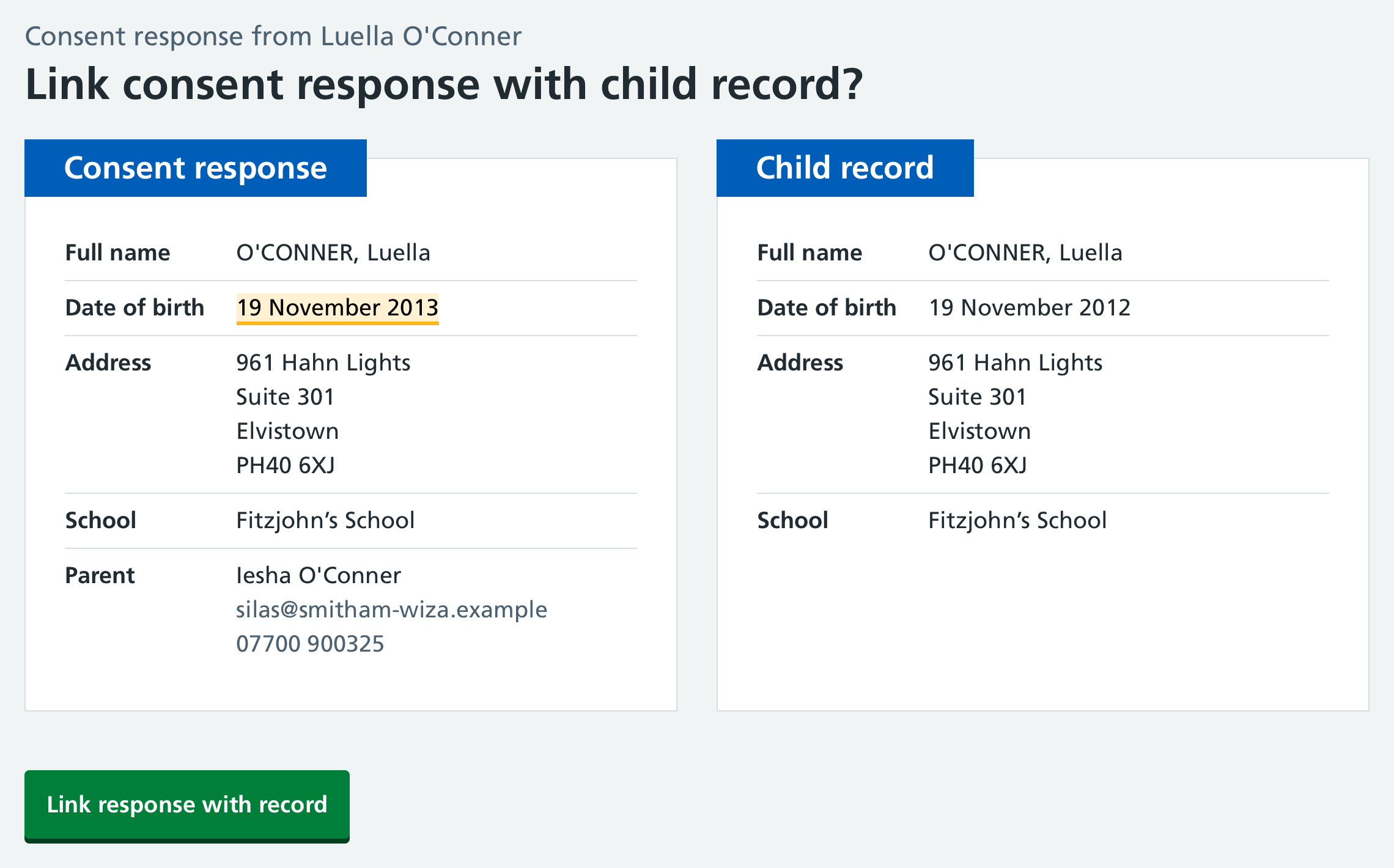
Mavis makes it easy to compare a consent response with a child record. -
If you believe it’s a match, click Link response with record.
If you cannot find a match
If you cannot find a match, you can create a new child record matching the details in the unmatched consent response. To do this, return to the page where you search for a child record that matches the child’s name and select Create new record.
Another option is to archive the unmatched consent response. To do this, return to the ‘Unmatched consent responses’ page and select Archive next to the relevant response.
Investigating conflicting consent responses
If one parent gives consent for a vaccination and the other refuses, Mavis flags this as conflicting consent.
For flu, ‘conflicting consent’ can also mean that parents have given consent for different vaccines.
In both cases, you will need to investigate the conflicting consent and resolve it before the child can be vaccinated.
- Go to Sessions and find the session you’re interested in. Select it.
- If there are any children with conflicting consent, this will be flagged in the Action required section of the Overview tab. Select the link to display them.
- Select a child’s name to open their record. Scroll down to see who has said what in their consent responses.
- Select the name of the parent whose consent you want to investigate. This opens their consent response, including their contact details.
- Contact the parent to discuss the conflicting consent.
- If the parent changes their consent decision when you speak to them, add their new response to the child record manually (see Recording a new consent response).
Investigating unknown parent contact details in consent response
If a consent response has different contact details from those on record, Mavis will automatically:
- record the consent decision
- add an additional contact to the child record with the new contact details
- contact the original parent to make sure the response came from somebody with parental authority
If the original parent informs you that the consent response came from somebody without parental responsibility, you need to:
- mark the consent response as invalid (see Marking a consent response as invalid)
- remove the contact who sent the invalid response (see Editing and removing contacts
Resolving incorrect contact details in consent response
If you find out that a parent entered incorrect phone or email details in a consent response by mistake, you need to:
- mark the consent response as invalid - see Marking a consent response as invalid
- contact the parent and record a new consent response with the parent’s consent decision and the correct contact details - see Recording a new consent response
You must invalidate the original consent response before recording a new one. Otherwise, future messages about the child’s vaccination could be sent to the wrong person.