Viewing, editing and archiving child records
Once cohort records have been imported into Mavis, you can view, edit and archive individual child records.
Viewing child records
- From the dashboard, go to Children.
- Search for the child whose record you want to view.
- Select their name to open their record.
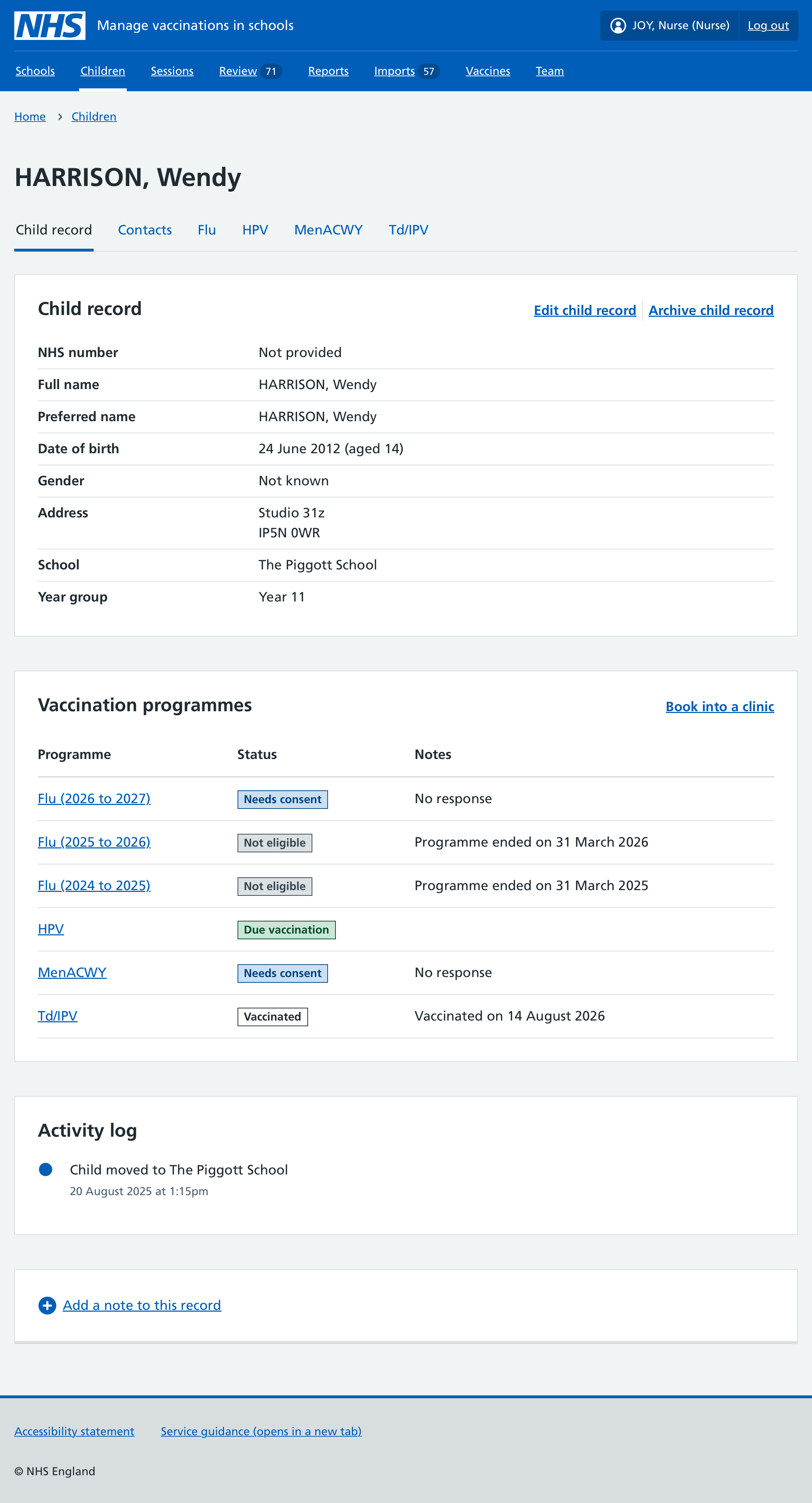
The child record gives details about the child and their current vaccination status across all programmes.
Viewing programme details
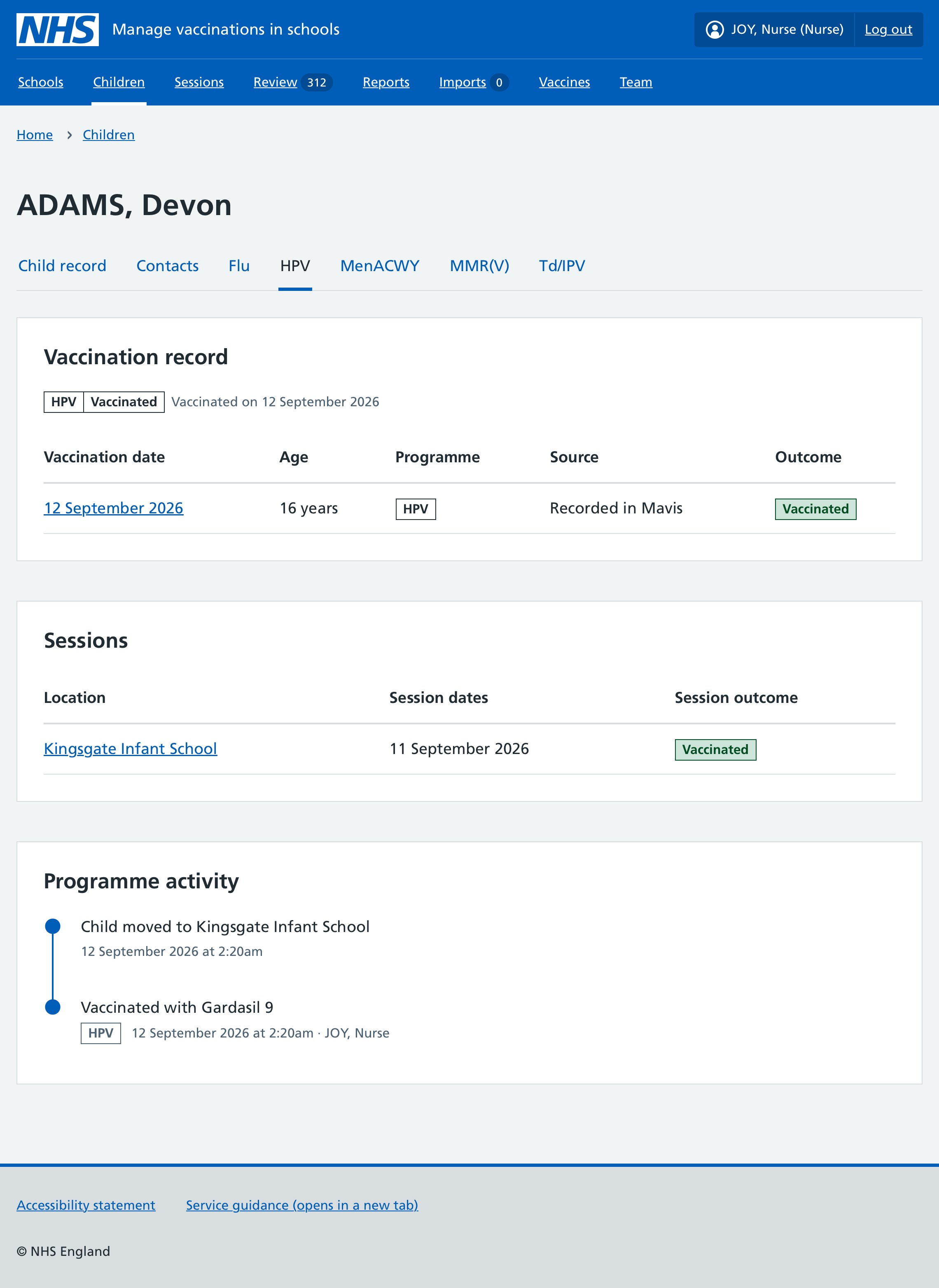
Use the programme tabs at the top of the child record page to view more detailed information for each programme.
This includes the child’s vaccination record, any sessions they’ve been added to, and an activity timeline for that programme.
Editing child records
-
Go to Children.
-
Search for the child by name and select their record.
-
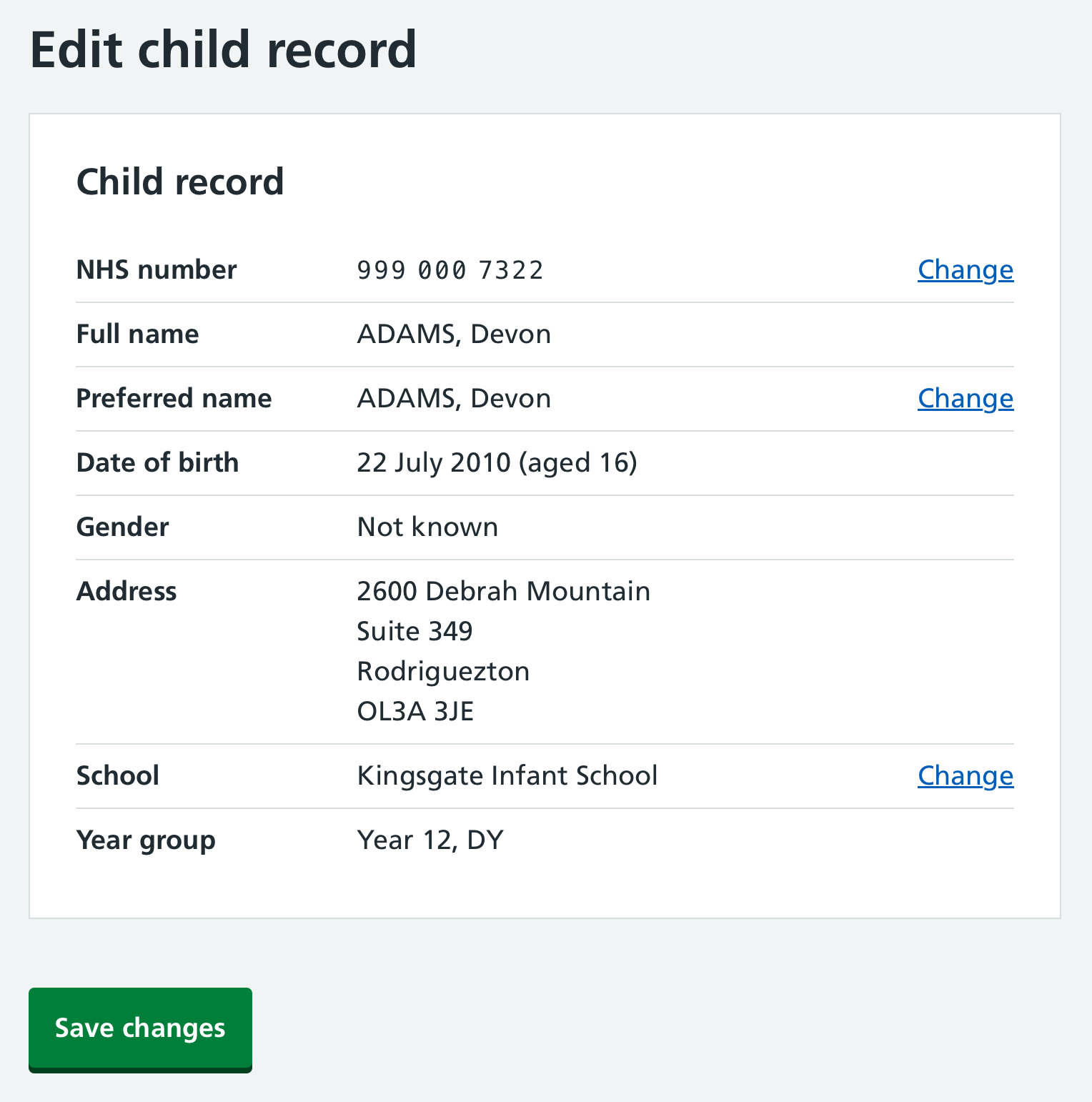
Select Edit child record.
-
If you need to change their NHS number, preferred name or school, select Change
 Note:
Note:To change a child’s school, after selecting Change, start to type the name of their new school. Type Unknown if you do not know the name of the school, or Home-educated for home-educated children. If the new school is outside your SAIS area, archive the child record.
-
Edit the information and select Continue.
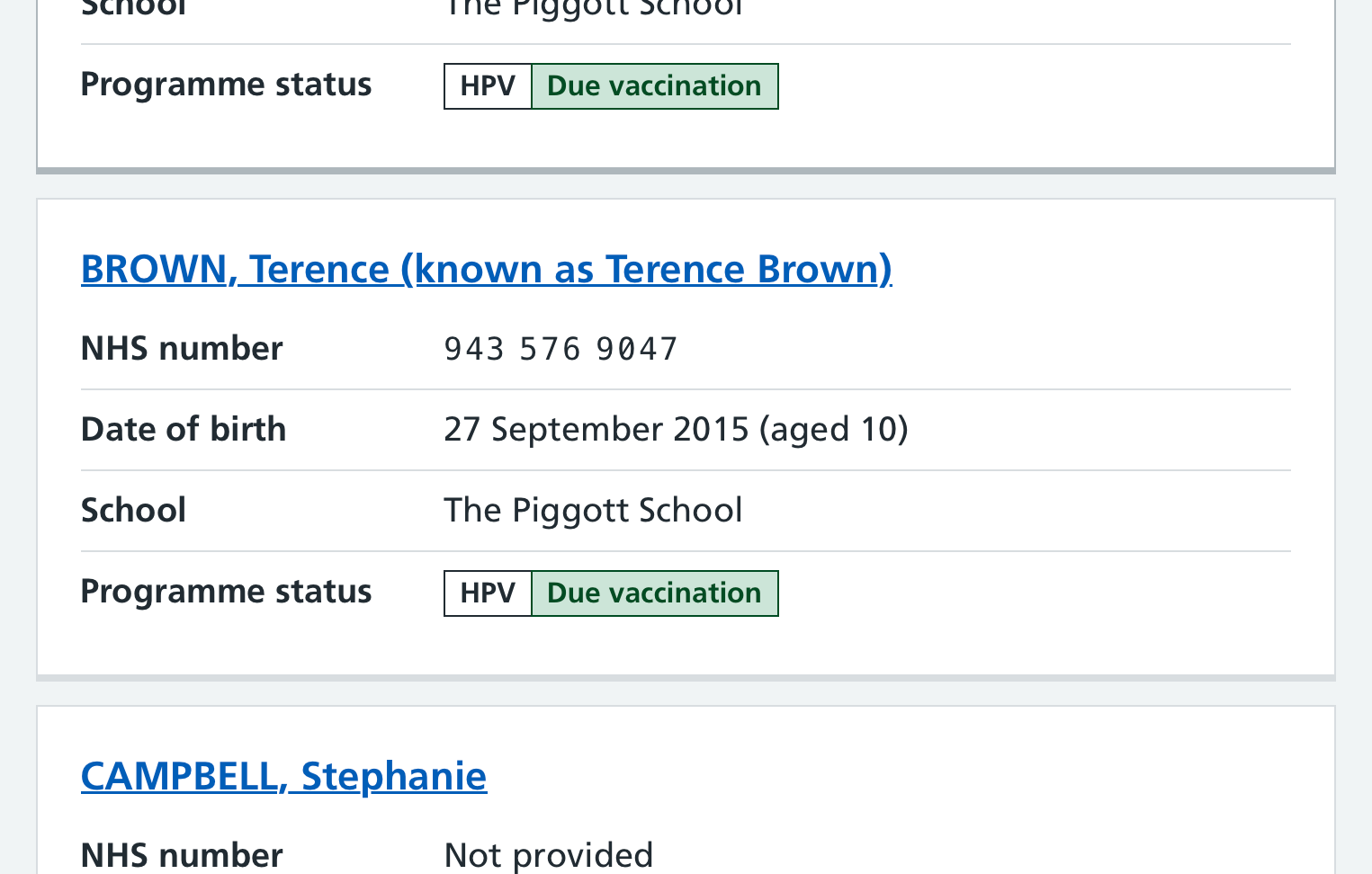
If you add a preferred name it will appear as (known as …) beside their name in summary cards.
Adding, editing or removing parent contacts
Mavis stores parent contact details separately for each child. If a parent is linked to more than one child, updating their details on one child’s record will not change their details on the other children’s records.
You can add, edit or remove parent contacts directly in a child’s record. These changes do not affect the child’s other parent contacts.
Parent contacts you add or edit manually may be archived when you next upload a class list or child records. Find out more about how Mavis handles parent contacts.
Adding contacts
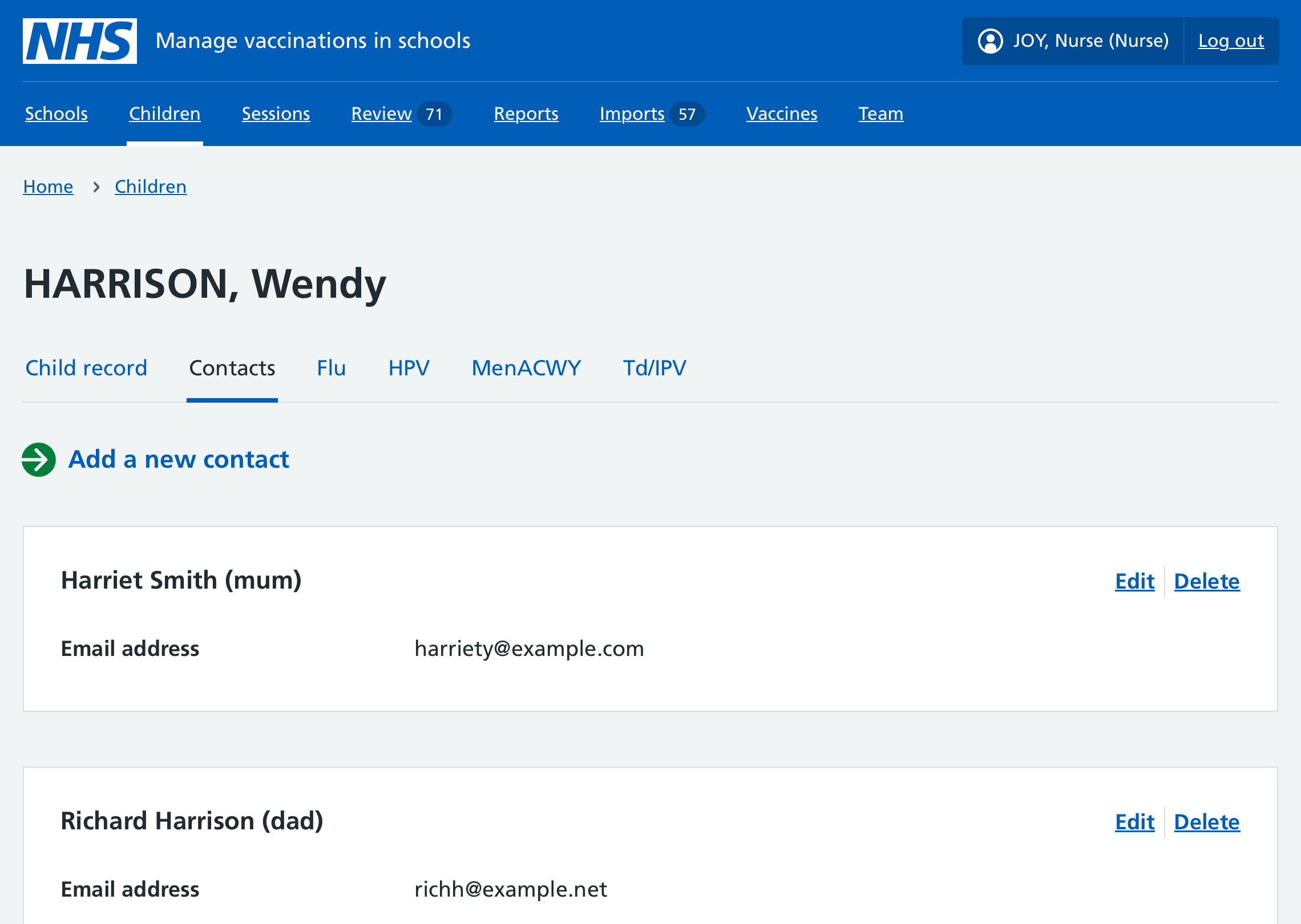
- Go to Children.
- Search for the child by name and select Contacts.
- Select Add a new contact.
- Enter the new contact details and select Add contact.
Editing contacts
To make changes to a contact:
- Go to Children.
- Search for the child by name and select Contacts.
- Select Edit on the contact card you need to update.
- Add or update the contact details and select Save changes.
Removing contacts
To remove a contact:
- Go to Children.
- Search for the child by name and select Contacts.
- Select Delete on the contact card you need to update.
- Select Yes, delete this contact.
Archiving child records
To remove a child’s record from the cohort, for example if:
- it’s a duplicate record
- it was imported in error
- the child has moved out of the area or died
- Select Archive child record.
- Select a reason for archiving this record, adding details if required.
- Select Archive record.
If you need to bring an archived record back into the cohort (for example, if a record was archived in error, or if the child moves back into the area), upload a cohort list again with a single row containing this child.