Registering attendance of children in sessions
You can register children’s attendance at vaccination sessions in Mavis.
If this feature is enabled for your team, you can only record vaccinations for children who are registered as attending a session.
This feature can be switched off on the Edit session page.
If you switch it off, all children with consent (and ‘safe to vaccinate’ triage outcomes, where relevant) will appear in ‘Record vaccinations’.
When a session is in progress, you can quickly see whether a child has been registered by looking at the Registration status shown on each child’s summary card.
To register a child as attending or absent:
- Go to Sessions.
- Filter for In Progress sessions.
- Find the session you’re interested in and select it.
- The Action required area on the Overview tab shows how many children have not been registered yet. Select the link (for example, 36 children to register) to see the list of children.
- Find the child’s name, then select Attending or Absent.
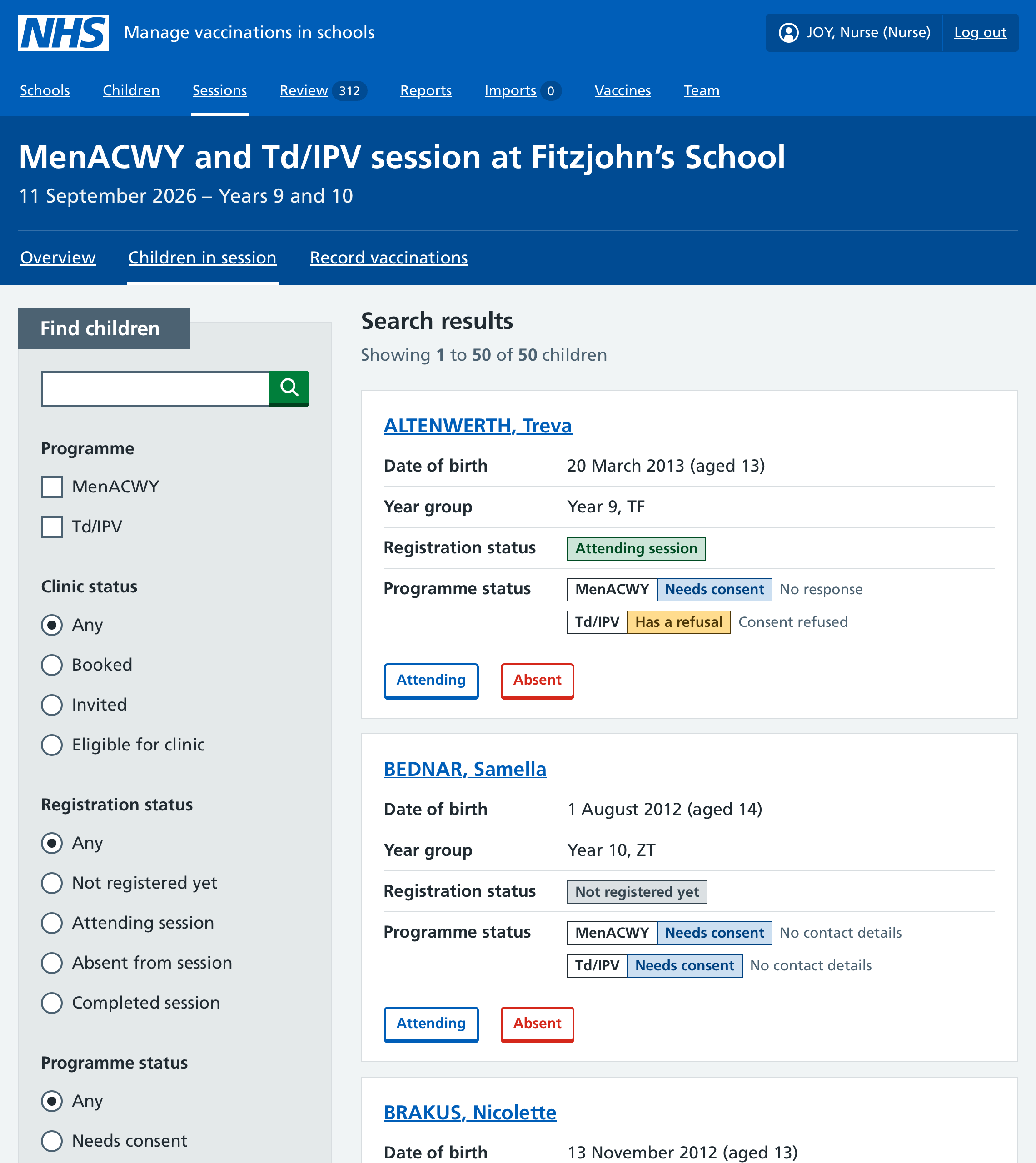
You can also find children who still need to be registered on the Children in session tab by selecting Not registered yet under Registration status.
Changing a child’s attendance status
You can change a child’s attendance status while a session is in progress.
- From the Children in session tab, find the child whose attendance you want to update.
- Select Attending or Absent to update their status.