Sharing vaccination records between Mavis and SystmOne
SAIS teams who use Mavis alongside SystmOne as an electronic patient record need to ensure that vaccination records created in Mavis also appear in SystmOne.
Mavis automatically sends vaccination records to children’s GP practices. If a child’s GP practice also uses SystmOne, the record will automatically appear in your SystmOne system.
However, if the child’s GP practice uses EMIS or Medicus, you’ll need to import those records into SystmOne manually.
Until there’s fully automated data sharing, you should periodically download vaccination records from Mavis and upload them in bulk to SystmOne. SystmOne will automatically ignore any duplicates, so you don’t need to filter out records that have already synced.
Upload Mavis records to SystmOne
Download a vaccination report from Mavis
- From the Programmes tab in Mavis, select the correct academic year and programme and select Download vaccination report.
- Select a date range.
- Select the CSV for SystmOne (TPP) file format and Continue.
Upload the file to SystmOne
-
Open SystmOne.
-
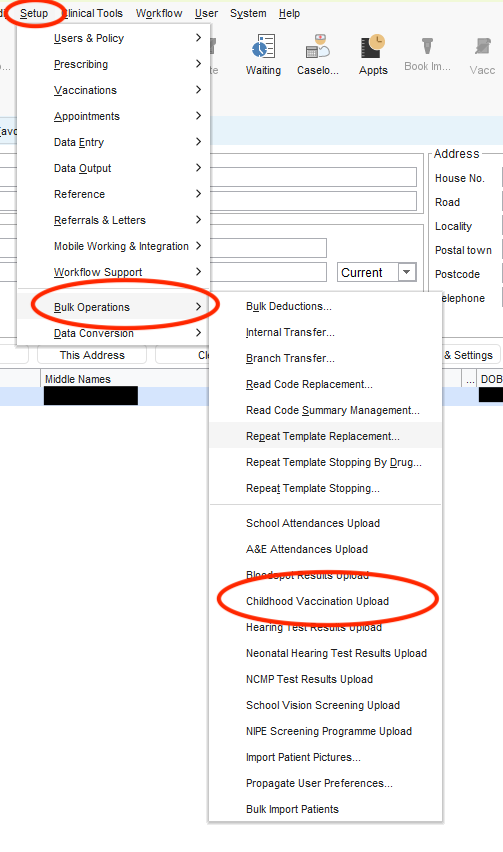
Use the application menu to navigate to Setup then Bulk Operations then Childhood Vaccination Upload.
-
Select the data file you want to upload.
-
Select Import file.
Review and resolve records
-
Resolve any records that appear in the Unmatched Patients tab.
-
Check that any records that appear in the Ready for Upload tab look as expected.
-
Review any errors shown in the Errors tab:
- to double-check the errors, you can download a CSV of the errors and use filters to check that all of the errors are “This item already exists on the child’s record. Details of this item will not be included in any task created as a result of this upload.”
- you’ll need to review and resolve any other errors separately
-
Select Accept Changes.
Confirm the upload
-
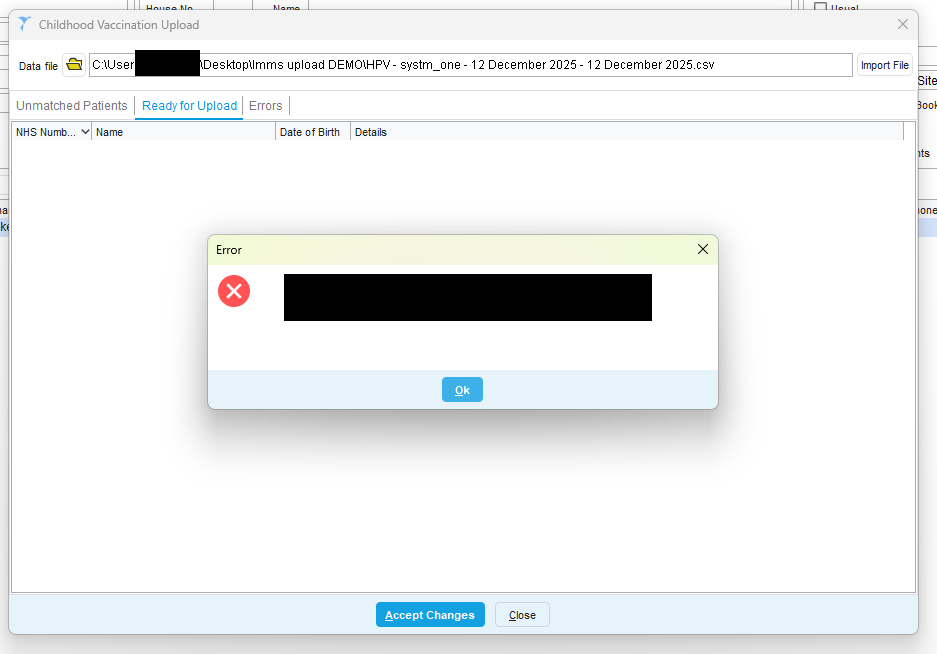
You’ll see an error message saying that errors exist with the upload.
-
Select OK to dismiss the error message.
-
The new records will have been added to SystmOne successfully and the duplicates ignored.
-
You can verify this by checking the patient record for one of the records that was in the Ready for Upload tab.